HBase Workloads on Amazon EMR
When migrating HBase to Amazon EMR, choose between two storage modes: HDFS for a direct lift-and-shift, or Amazon S3 (available with EMR 5.2.0+) to decouple storage from compute. HBase on S3 can introduce significant cost savings for read-heavy workloads — data is stored durably in Amazon S3, and the cluster only needs enough capacity to handle active reads and writes without maintaining multiple HDFS replicas. For write-heavy or latency-sensitive workloads, HDFS remains a viable option on EMR and can serve as an intermediate step before migrating to S3 storage.
HBase Upgrades
For HBase upgrades and migrations, we recommend running the newer version of HBase alongside the previous version until all testing is complete. This blue-green upgrade strategy minimizes risk and provides an easy rollback path without data loss.
The recommended upgrade process is:
-
Take a snapshot from the existing HBase cluster using HBase snapshots.
-
Use that snapshot to start a new cluster with the upgraded HBase version. For HBase on S3, configure the new cluster to point at the same Amazon S3 root directory or a copy of the data. For HBase on HDFS, use the ExportSnapshot tool to copy the snapshot to the new cluster.
-
Run both clusters simultaneously. Perform updates and reads against both clusters to validate data consistency and application compatibility.
-
Gradually shift application traffic to the new cluster. Validate that all workloads produce correct results on the upgraded version.
-
When testing is complete and the new cluster is stable, decommission the old cluster. If you encounter any issues requiring rollback, return application traffic to the old cluster.
Version Compatibility: EMR 5.x to EMR 7.x
Migrating HBase from EMR 5.x to EMR 7.x involves a major HBase version change (HBase 1.x → HBase 2.x). A direct in-place upgrade is not supported. Take a snapshot on your EMR 5.x cluster and launch a new EMR 7.x cluster pointing to the same S3 root directory, following the blue-green process above. Note the following:
-
Store File Tracking (EMR 6.2.0–7.3.0 → 7.4.0+): If your source cluster uses Amazon's Store File Tracking (the hbase:storefile system table, enabled by default in EMR 6.2.0 through 7.3.0), you must disable and drop the hbase:storefile table, flush hbase:meta, then launch the target cluster with DefaultStoreFileTracker before converting to FileBasedStoreFileTracker. See Migrating to Amazon EMR version 7.4.0 or later for the exact steps.
-
Read-Replica Migration (EMR 6.0.0+ → 7.12.0+): Launch a new EMR 7.12.0+ cluster as a read-replica pointing to the same S3 location, validate data accessibility, then switch it from read-only to active mode using the readonly_switch command. There can be only one active cluster pointing to an S3 location at any time — switch to active only after the source cluster is terminated.
-
Pre-1.0 HBase: If your on-premises cluster runs a pre-1.0 HBase version, consult Upgrading and HBase version number and compatibility in the Apache HBase Reference Guide for required intermediate steps.
Read-Replica Prewarm (EMR 7.12+): Amazon EMR 7.12 introduces the read-replica prewarm feature that significantly reduces HBase upgrade downtime from hours to minutes. This feature enables blue-green deployments at scale by allowing the new cluster to prewarm its block cache before traffic is switched over, eliminating the cold-start latency that traditionally caused extended outages during version upgrades, AMI rotations, and instance type changes.
For guidance on specific migration scenarios and version compatibility, see:
-
Migrating self-managed HBase to EMR HBase — covers migration from on-premises or self-managed HBase clusters to EMR
File System Connector: EMRFS, EMR S3A, and HBase on S3 Through Amazon EMR 7.9, Amazon EMR used EMRFS as its primary connector for HBase on Amazon S3. Starting with EMR 7.3, the EMR S3A connector achieved performance parity with EMRFS. Beginning with EMR 7.10, EMR S3A is now the default file system connector for HBase on Amazon S3.
Performance benchmarks using YCSB (Yahoo! Cloud Serving Benchmark) with 100 million rows demonstrate that EMR S3A achieves comparable performance to EMRFS and delivers up to 65% lower latency compared to open-source S3A (OSS S3A) in read-heavy and mixed read/write workloads. The transition to EMR S3A brings architectural benefits including better standardization, improved portability, stronger community support, and AWS SDK V2 integration.
Optimize Bulk Loads on HBase on S3
A common approach when migrating an existing cluster to HBase on S3 using EMR, or when performing initial data loads, is to use bulk loads. Although this approach can be an effective way to bootstrap your new cluster, there are several ways you can optimize bulk loads for the best performance.
Depending on your version of HBase and where your generated StoreFiles are located, the command to perform the bulk load is similar to the following:
hbase org.apache.hadoop.hbase.mapreduce.LoadIncrementalHFiles \
<s3://bucket/storefileoutput/> <tablename>
The command initiates the CompleteBulkLoad process, which involves the following sequence:
-
Lists all available StoreFiles in the storefileoutput location on Amazon S3.
-
Determines in which Region each StoreFile should be placed, and whether that StoreFile fits within the given Region based on the configured maximum region size (hbase.hregion.max.filesize).
-
If a StoreFile is too large for the Region, or if the Region has split since the files were created, the primary node splits the StoreFile into two new files and re-adds them to the queue for processing.
-
For each Region that has StoreFiles to load, the primary node issues a request to the responsible RegionServer to initiate a BulkLoad.
-
The RegionServer copies the StoreFile from Amazon S3 to the target Region, then loads the StoreFile into HBase and acknowledges completion.
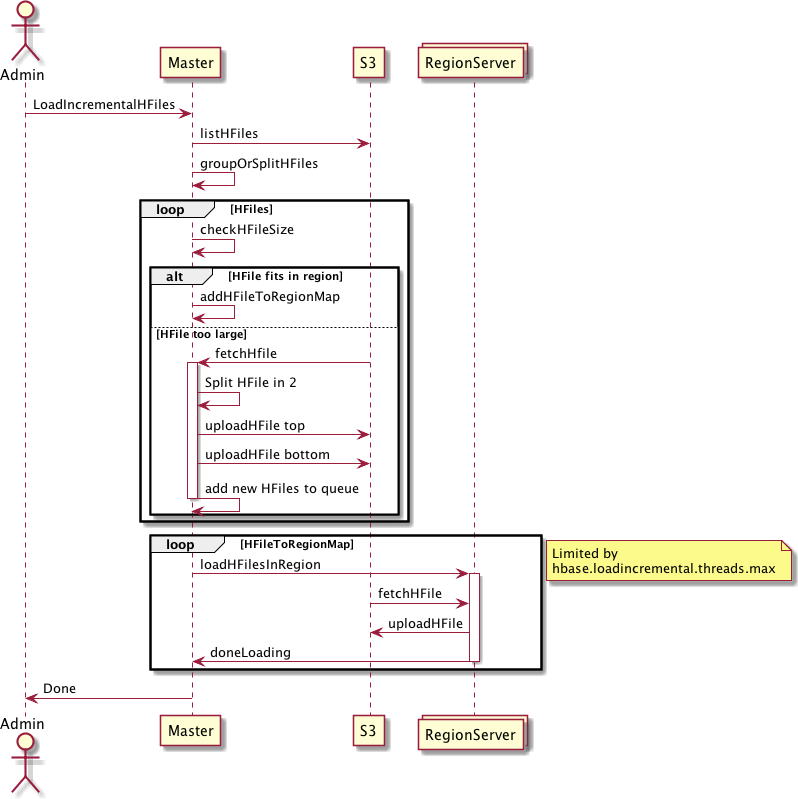
Figure 45: Overview of CompleteBulkLoad process
(Figure TBD) As with any distributed system, the performance of the bulk load process depends on available CPU cores, memory, and network bandwidth.
Optimize Amazon S3 Uploads
You can optimize S3 uploads by adjusting the following configuration settings:
-
fs.s3.threadpool.size: By default, this setting is 20. Increasing this value allows more parallel multipart uploads. Note that you may need to use an instance type with a higher CPU count to benefit from this increase, as each thread consumes CPU resources.
-
fs.s3n.multipart.uploads.split.size: Increase this setting when uploading large files to avoid hitting multipart upload limits and to improve overall throughput to Amazon S3.
Increase Threads on the Primary Node
The primary node (or whichever node you run LoadIncrementalHFiles on) performs two primary operations: (1) splitting StoreFiles that do not fit within a Region, and (2) coordinating BulkLoad requests with each responsible RegionServer. These operations execute in a thread pool whose default size equals the number of available CPUs on the node.
For example, if your primary node is a small m4.large with only 2 vCPUs, the entire bulk load process can be blocked when two or more StoreFiles must be split simultaneously. You can address this limitation in two ways:
-
Use a larger instance type with more vCPUs for the primary node. Consider Graviton-based instance types such as m7g.4xlarge or m7g.8xlarge for large bulk load operations, which offer better price-performance than previous generations.
-
Define the hbase.loadincremental.threads.max variable explicitly when running the job to override the default CPU-count-based limit.
Important: Even with 100 RegionServers, the LoadIncrementalHFiles command can only utilize as many RegionServers as the value of hbase.loadincremental.threads.max allows. If your primary node has 8 vCPUs, by default only 8 RegionServers will be used concurrently. You can increase this value to match your RegionServer count, but be aware that StoreFile splitting on the primary node will compete for the same thread pool, potentially creating a bottleneck.
Increase RPC Timeout for Large StoreFiles
If you have generated large StoreFiles (upwards of 10 GB) or if you have a high number of StoreFiles assigned to a specific RegionServer, your LoadIncrementalHFiles command may occasionally return an "Error connecting to server" message due to a CallTimeoutException. This behavior is expected when operations take longer than the default RPC timeout window, but it results in multiple retry attempts and can cause the load to fail.
To work around this issue, increase the RPC timeout using the hbase.rpc.timeout variable when starting your bulk load job. A value of 600000 (10 minutes) is typically sufficient for large StoreFiles.
HBase Observability
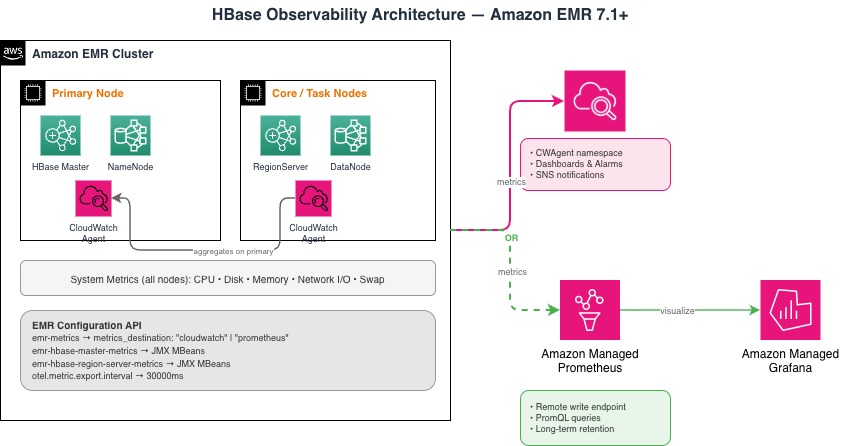
Figure xx: HBase metrics flow from EMR cluster nodes via CloudWatch Agent to CloudWatch or Prometheus (EMR 7.1+). Ganglia is removed starting EMR 7.0.
When migrating HBase workloads from on-premises to Amazon EMR, you need to replace your existing monitoring stack (typically Ganglia, JMX polling, or custom Hadoop metrics sinks) with the EMR-native observability model. Starting with EMR 7.0, Amazon EMR replaced Ganglia with the Amazon CloudWatch Agent for metrics collection. From EMR 7.1 onwards, the setup is simplified through the EMR configuration API — you specify your metrics destination (CloudWatch or Prometheus) and the HBase JMX MBeans to collect at cluster creation time, with no bootstrap actions or manual downloads required. Ganglia is not available on EMR 7.x releases.
The CloudWatch Agent on EMR collects three categories of metrics across all cluster nodes: system metrics (CPU, disk, memory, network I/O, swap), Hadoop daemon metrics (DataNode, NameNode, YARN ResourceManager and NodeManager), and HBase-specific metrics (Master, RegionServer, REST Server, and Thrift Server). Metrics are JMX-based and published to CloudWatch under the CWAgent custom namespace, or sent to an Amazon Managed Service for Prometheus endpoint via remote write. For migration, configure the metrics that match what you monitored on-premises — key HBase metrics to track post-migration include AssignFailedCount, numActiveHandler (RegionServer IPC load), regionserver.Server.Bulkload_count, and request latency percentiles. Set up CloudWatch Alarms on critical thresholds (e.g., RegionServer handler saturation, GC pressure) with SNS notifications to replicate the alerting you had on-premises. For setup details and configuration examples, see Set up metrics and Using the Metrics Destination.
Monitoring Bulk Loads with Amazon CloudWatch
While the bulk load is running, the HBase web UI does not provide enough metric granularity to carefully monitor job progress. Starting with EMR 7.1, use the Amazon CloudWatch Agent to monitor bulk load progress by configuring emr-hbase-region-server-metrics to collect the JMX metric regionserver.Server.Bulkload_count, which tracks how many bulk loads have completed across each RegionServer over time. In addition to general CPU and network utilization available through system metrics, this metric allows you to confirm that load is being distributed evenly across RegionServers and progressing as expected. Create a CloudWatch dashboard to visualize bulk load count per node alongside network throughput and disk I/O to identify bottlenecks during large data migrations.
For setup details, see Monitoring EMR HBase with Amazon CloudWatch and Set up metrics.
Debugging Bulk Load Issues
If you encounter errors during a bulk load, enable DEBUG logging for the LoadIncrementalHFiles class to capture detailed diagnostic output:
Set the following property in your hbase-log4j configuration:
log4j.logger.org.apache.hadoop.hbase.mapreduce.LoadIncrementalHFiles=DEBUG
# For RPC-level debugging, also enable:
log4j.logger.org.apache.hadoop.hbase.ipc.RpcServer=TRACE
Summary and Configuration Examples
This section outlined three primary strategies to optimize HBase bulk loads on Amazon S3:
-
Maximize Amazon S3 and network bandwidth by tuning the S3 threadpool size and multipart upload split size.
-
Maximize CPU utilization on the primary node by using a larger instance type and/or increasing the incremental load thread count.
-
Tune HBase settings for the expected workload including RPC timeout and region file size thresholds.
All configuration variables can be specified either as command-line arguments to LoadIncrementalHFiles, or configured cluster-wide using Hadoop/HBase configuration classifications when creating the cluster.
Example 1: Increasing Threads and RPC Timeout (Command Line)
The following command sets the number of concurrent threads to 20 and the HBase RPC timeout to 10 minutes (600,000 ms):
hbase org.apache.hadoop.hbase.mapreduce.LoadIncrementalHFiles \
-Dhbase.loadincremental.threads.max=20 \
-Dhbase.rpc.timeout=600000 \
<s3://bucket/storefileoutput/> \
<tablename>
Example 2: Cluster Configuration JSON (AWS CLI / SDK)
When creating your cluster through the AWS CLI or SDK, use the following JSON configuration to define HBase on S3 settings, set region size limits, and enable DEBUG/TRACE logging for bulk load operations:
[
{
"Classification": "hbase",
"Properties": {
"hbase.emr.storageMode": "s3"
}
},
{
"Classification": "hbase-site",
"Properties": {
"hbase.rootdir": "s3://<bucket>/<hbaseroot>",
"hbase.hregion.max.filesize": "21474836480"
}
},
{
"Classification": "hbase-log4j",
"Properties": {
"log4j.logger.org.apache.hadoop.hbase.mapreduce.LoadIncrementalHFiles": "DEBUG",
"log4j.logger.org.apache.hadoop.hbase.ipc.RpcServer": "TRACE"
}
}
]
Example 3: Creating an HBase on S3 Cluster (AWS CLI)
To create an HBase cluster with S3 storage mode using the latest EMR release and the configuration above:
aws emr create-cluster \
--release-label emr-7.12.0 \
--applications Name=HBase \
--instance-type m5.xlarge \
--instance-count 3 \
--configurations https://s3.amazonaws.com/mybucket/config/hbase-s3-config.json
Recent HBase Performance Improvements on Amazon EMR
| Feature / Release | Description & Impact |
|---|---|
| Persistent HFile Tracking | EMR 6.2.0+ introduced a hbase:storefile system table that directly trackls HFile paths, reducing reliance on S3 rename operations. Improves flush operations, compactions and overall faster write-heavy workloads. |
| EMR S3A as Default | EMR 7.10+ replaces EMRFS as the default S3 connector, achieving performance parity with EMRFS while delivering up to 65% lower latency than open-source S3A on read-heavy workloads. Supports AWS SDK v2. |
| Bucket Caching | EBS gp3 SSD based persistent bucket caching reduced read latency and improves throughput compared to uncached S3 reads. |
| Read-Replica Prewarm | EMR 7.12+ reduces HBase upgrade and maintenance downtime from hours to minutes by allowing new clusters to prewarm. Applicable for version ugprades, AMI rotations and instance type changes. |
| Multi-Master HA | EMR now supports launching 3 primary nodes, enabling HBase to tolerate primary node failures. |