Implementing Multi-Tenancy: Considerations
EMR on EC2: Implementing Multi-Tenancy Considerations
Multitenant architecture with Amazon EMR on EC2 requires careful thought and planning along critical dimensions, including user, data, and resource isolation.
User Isolation
Authentication
Authentication of users is a critical piece in securing cluster resources and preventing unauthorized access to data. Amazon EMR on EC2 provides flexibility for users to implement various authentication mechanisms based on their preferences such as IAM, IAM Identity Center (single sign-on), Kerberos and LDAP. For detailed implementation, refer to the security section of this migration guide.
Data Isolation
Authorization
After users are authenticated, you must consider what data assets they are authorized to use. You can choose to implement authorization on Amazon EMR at the storage layer or server layer. Amazon EMR on EC2 supports IAM Role based access control, S3 Grants, and AWS Lake Formation for fine grained access control. For detailed implementation, refer to the security section of this migration guide.
Resource Isolation
YARN Queue Management
On Amazon EMR, you can use different YARN queues to submit jobs. Each YARN queue may have a different resource capacity and be associated with specific users and groups on the Amazon EMR cluster. The YARN Capacity Scheduler enables a hierarchy of queues to partition cluster resources among tenants.
For detailed implementation guidance, refer to Configure Hadoop YARN CapacityScheduler on Amazon EMR on Amazon EC2 for Multi-Tenant Heterogeneous Workloads.
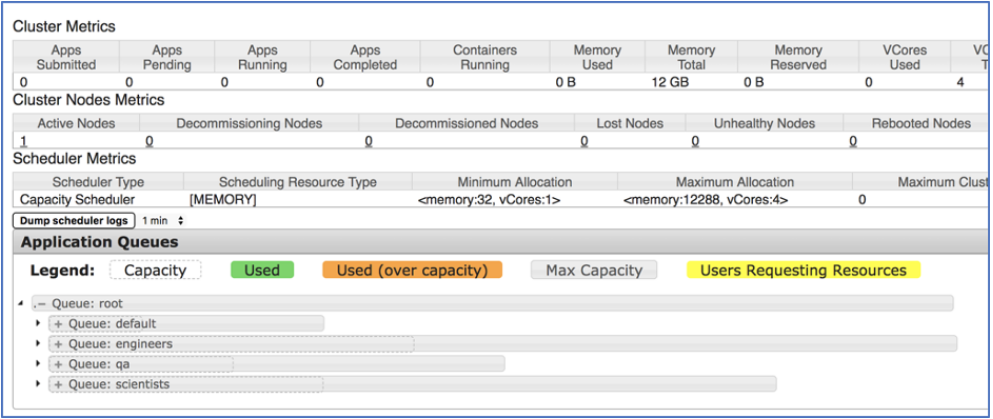
Figure 37: YARN Resource Manager UI
For example, a user from the engineers group can log in to the EMR primary node and submit jobs to the engineers YARN queue:
ssh -l engineer <<emr-dns>>
[engineer@ 10-10-1-222 ~] spark-submit \
--queue engineers \
--class org.apache.spark.examples.SparkPi \
--master yarn \
/usr/lib/spark/examples/jars/spark-examples.jar
Figure 38: Spark History Server showing job submitted to engineers queue

Figure 39: Example code on Amazon EMR
In this previous example code, a user engineer is submitting a Spark job and passing a parameter — queue to reflect which queue it should use to run that Spark job. The YARN ResourceManager UI shows the same job being performed.
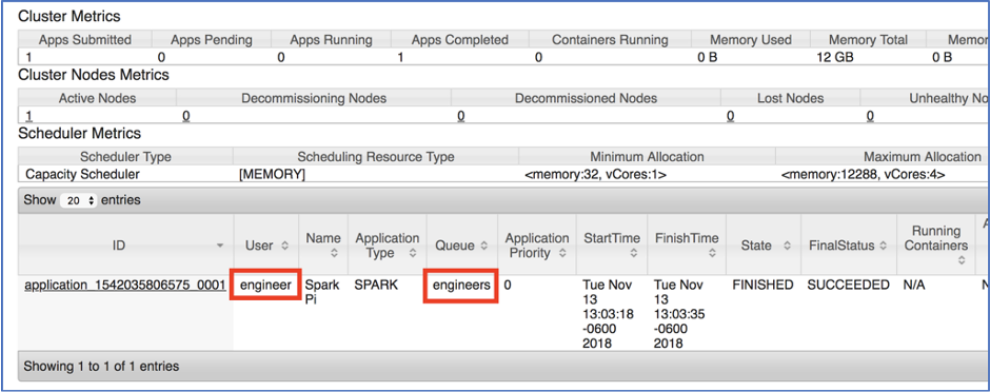
Figure 40: User engineer submitting Spark job in YARN
Note: YARN queues apply only to applications that run on YARN. Trino (formerly Presto) applications do not use YARN queues and have their own resource management mechanisms.
Key Considerations:
Amazon EMR on EC2's multi-tenancy capabilities are built upon the foundational silo and shared mode paradigms, which remain well-suited for organizations with existing Hadoop workloads. These deployment patterns are now augmented with updated Lake Formation Fine-Grained Access Control (FGAC) capabilities, including table, row, column, and cell-level access, open table format support, and write operation enforcement available from EMR 7.12 onward.
Additional security enhancements include Trusted Identity Propagation and S3 Access Grants for identity-aware data access. When designing a multi-tenant architecture on EMR on EC2, the primary consideration is whether workloads require HDFS, as this is the key driver for choosing EMR on EC2 over serverless alternatives.
Organizations should align their authentication mechanism with their existing identity infrastructure, whether that is Active Directory/LDAP, a SAML IdP, or AWS IAM Identity Center. Lake Formation FGAC should be leveraged for data-level tenant isolation, taking advantage of write operation enforcement and open table format support to avoid the operational overhead of maintaining separate clusters per access pattern.
Extract, Transform, Load (ETL) on Amazon EMR
Orchestration on Amazon EMR
Orchestration frameworks are heavily used in the Apache Hadoop ecosystem to integrate and monitor multiple applications centrally. They manage complex interdependent jobs, maintain each of the applications’ states and execute based on a pre-defined pattern. There are several orchestration engines that are available for Hadoop, among those Apache Oozie is a widely used workflow scheduler system. You can also use AWS Step Functions, AWS Glue or Apache Airflow to orchestrate and schedule multiple applications. When migrating workloads from an on-premises Hadoop cluster to Amazon EMR, in addition to the applications that are running on the Hadoop cluster, the orchestration tool must be migrated so that it can effectively orchestrate applications in the cloud. This section discusses the steps to migrate an orchestration application from an on-premises Hadoop cluster, provides other orchestration options available for Amazon EMR, and details recommended best practices for migration.
Migrating Apache Oozie to Amazon MWAA
AWS recommends migrating from Apache Oozie, as it is no longer under active open-source development and will be removed from an upcoming Amazon EMR release. For customers currently running Oozie workflows on Amazon EMR, the recommended migration path is to Amazon MWAA (Managed Workflows for Apache Airflow). Amazon MWAA provides a fully managed Apache Airflow environment that handles the underlying infrastructure, supports Apache Airflow 2.x, and integrates natively with Amazon EMR on EC2, Amazon EMR Serverless, and Amazon EMR on EKS.
To assist with the migration, AWS provides the open-source utility oozie-to-airflow-emr on GitHub, which converts existing Oozie workflows into Apache Airflow DAGs compatible with Amazon MWAA.
Migration Steps
Step 1: Inventory your Oozie workflows
Before beginning the migration, take stock of all existing Oozie workflows, coordinators, and bundles. Identify the following for each workflow:
-
The workflow.xml, coordinator.xml, and bundle files
-
The job.properties files and any external parameter files
-
All dependent libraries and custom actions
-
Any external database connections or data sources referenced in the workflows
-
The schedule or trigger mechanism used by each coordinator
This inventory helps you understand the scope of the migration and identify any workflows that may require additional attention during conversion.
Step 2: Set up Amazon MWAA
Create an Amazon MWAA environment in the same AWS region as your Amazon EMR clusters. When creating the environment, you will need an Amazon S3 bucket to store your DAG files, plugins, and requirements. The MWAA environment should be configured within a VPC that has connectivity to your EMR clusters and any other AWS services your workflows interact with.
#Create an S3 bucket for your MWAA environment aws s3 mb s3://my-mwaa-environment-bucket
# Create the required folder structure aws s3api put-object --bucket my-mwaa-environment-bucket --key dags/ aws s3api put-object --bucket my-mwaa-environment-bucket --key plugins/ aws s3api put-object --bucket my-mwaa-environment-bucket --key requirements/
When creating the MWAA environment, ensure the execution role has permissions to interact with Amazon EMR, Amazon S3, and any other AWS services your workflows require.
Step 3: Install and run the oozie-to-airflow-emr conversion utility
Clone the oozie-to-airflow-emr utility from GitHub and use it to convert your existing Oozie workflow XML files into Apache Airflow DAGs. The utility handles the translation of common Oozie constructs including workflow actions, control flow nodes, and coordinator schedules into their Airflow equivalents.
# Clone the conversion utility git clone https://github.com/dgghosalaws/oozie-to-airflow-emr.git cd oozie-to-airflow-emr
# Install the required dependencies pip install -r requirements.txt
# (Optional) Install from local folder pip install -e.
Requirements: Python >= 3.6 (tested with Python 3.9)
Prepare your application directory structure
Your input directory must follow this structure:
<APPLICATION>/ |- job.properties # Job properties used to run the job |- hdfs/ # Folder with application files | |- workflow.xml # Oozie workflow XML (1.0 schema) | |- ... # Additional folders required for HDFS |- configuration.template.properties # Template of configuration values |- configuration.properties # Generated properties for configuration
Why this structure matters: The utility expects this layout to properly parse your Oozie workflows and extract all necessary configuration parameters for the Airflow conversion.
Configure your environment
Copy configuration.template.properties to configuration.properties and fill in the required values:
properties
# EMR cluster ID where jobs will run emr_cluster=j-3JT1C4X61EFH
# AWS connection details for Airflow aws_conn_id=aws_default aws_region=us-west-2 check_interval=30
# S3 URI prefix where DAG files and scripts are stored s3_uri_prefix=s3://your-bucket/dags
Why configuration matters: These values replace Oozie-specific parameters (like nameNode, resourceManager) with AWS-specific connection details that Airflow needs to interact with EMR.
Run the conversion
bash
# Basic conversion o2a -i examples/hive -o output/hive
# With additional options o2a -i <INPUT_DIRECTORY_PATH> \ -o <OUTPUT_DIRECTORY_PATH> \ -n <DAG_NAME> \ -u <USER> \ -s <START_DAYS_AGO> \ -v <SCHEDULE_INTERVAL> \ -x <SCHEMA_VERSION>
Available options:
-
-i / --input-directory-path: Path to input directory (required)
-
-o / --output-directory-path: Desired output directory (required)
-
-n / --dag-name: Desired DAG name (defaults to input directory name)
-
-u / --user: User to replace all ${user.name} references (defaults to current user)
-
-s / --start-days-ago: DAG start as number of days ago
-
-x / --schema-version: Oozie schema version [1.0, 0.4, 0.5]
-
-v / --schedule-interval: DAG schedule interval as number of days
-
-d / --dot: Renders workflow files in DOT format
Examples for different schema versions
bash
# For Oozie schema 0.4 o2a -i examples/order_header_item_stage \ -o output/order_header_item_stage \ -x 0.4
# For Oozie schema 0.5 (Sqoop/Java examples) o2a -i examples/sqoop -o output/sqoop -x 0.5
# For Oozie schema 1.0 (default, Hive/Spark examples) o2a -i examples/spark -o output/spark
Why schema version matters: Older Oozie workflows may use schema versions 0.4 or 0.5, which have different XML structures. Specifying the correct version ensures accurate parsing and conversion.
Review the generated DAG
Review each generated DAG carefully to ensure the conversion accurately reflects the intent of the original Oozie workflow. Pay particular attention to:
-
Custom Oozie actions: May require manual refinement after automated conversion
-
Fork and join constructs: Verify parallel task execution is correctly mapped
-
Error handling logic: Ensure retry and failure callbacks match original behavior
-
Parameterization: Confirm all ${variables} are properly replaced with Airflow Variables or Connections
-
Scheduling: Validate that coordinator schedules are correctly translated to DAG schedule intervals
Why manual review is critical: The automated conversion handles common patterns, but complex custom actions, heavily parameterized workflows, or non-standard Oozie constructs may require additional manual adjustments to ensure functional equivalence in Airflow.
Step 4: Map Oozie constructs to Airflow equivalents
The following table provides a reference for how common Oozie constructs map to their equivalents in Apache Airflow on Amazon MWAA:
| Oozie Construct | Airflow Equivalent on MWAA |
|---|---|
| Workflow XML (sequential actions) | Airflow DAG with sequential task dependencies |
| Coordinator (time-based scheduling) | DAG schedule interval or Amazon EventBridge Scheduler |
| Bundle | Multiple DAGs or DAG with sub-DAGs |
| Fork / Join | Airflow TaskGroup with parallel tasks |
| Spark action | EmrServerlessStartJobOperator or EmrAddStepsOperator |
| Hive action | EmrAddStepsOperator or AWS Glue Job |
| Shell action | BashOperator or AWS Lambda via AwsLambdaInvokeFunctionOperator |
| Java action | EmrAddStepsOperator with custom JAR |
| Decision node | BranchPythonOperator |
| Kill node | DAG failure handling with on_failure_callback |
Step 5: Update job properties and connection references
Oozie job.properties files contain configuration values such as nameNode, resourceManager, and queue names that are specific to the on-premises or EMR on EC2 Hadoop environment. In Airflow, these values are managed through Airflow Connections and Variables, which can be configured in the MWAA environment.
# Example: Referencing EMR connection details using Airflow Variables from airflow.models import Variable from airflow.providers.amazon.aws.operators.emr import ( EmrServerlessStartJobOperator )
emr_serverless_app_id = Variable.get("emr_serverless_app_id") emr_execution_role = Variable.get("emr_execution_role_arn")
start_job = EmrServerlessStartJobOperator( task_id='run_spark_job', application_id=emr_serverless_app_id, execution_role_arn=emr_execution_role, job_driver={ 'sparkSubmit': { 'entryPoint': 's3://my-bucket/jobs/my_spark_job.py', 'sparkSubmitParameters': ( '--conf spark.executor.memory=8g ' '--conf spark.executor.cores=4' ) } } )
Step 6: Upload DAGs to the MWAA S3 bucket
For MWAA deployment:
-
Create the required structure:
-
Create a dag.zip containing:
-
The o2a directory (utility library)
-
Your generated dag.py file
-
-
Upload to MWAA:
bash
# Upload the o2a library directory aws s3 cp o2a/ \ s3://my-mwaa-environment-bucket/dags/o2a/ \ --recursive
# Upload the generated DAG file aws s3 cp output/hive/hive.py \ s3://my-mwaa-environment-bucket/dags/
# Create .airflowignore to exclude .o2a files echo ".o2a" > .airflowignore aws s3 cp .airflowignore \ s3://my-mwaa-environment-bucket/dags/
Final MWAA structure:
<airflow-bucket/dags>/ |- .airflowignore # Contains .o2a to be ignored |- o2a/ # Utility library |- dag.py # Generated DAG after conversion
For EC2-based Airflow (using Packaged DAG):
Copy the dag.zip to the DAG folder in your Airflow installation.
Step 7: Test and validate the migrated workflows
Before decommissioning your Oozie workflows, run the converted Airflow DAGs in parallel with the existing Oozie workflows to validate that the outputs match and that all dependencies are resolved correctly. Use the Airflow UI available in your MWAA environment to monitor DAG runs, inspect task logs, and troubleshoot any issues.
When validating, pay particular attention to:
-
Output data written to Amazon S3 matches what the Oozie workflow produced
-
Scheduling behavior matches the original coordinator configuration
-
Error handling and retry logic behaves as expected
-
Downstream dependencies receive data in the expected format and location
Step 8: Decommission Oozie workflows
Once you have validated that the migrated Airflow DAGs produce the correct results consistently, you can disable the corresponding Oozie coordinators and workflows. Archive your Oozie workflow XML files to Amazon S3 for reference before removing them from active use.
# Archive Oozie workflow files to S3 before decommissioning aws s3 cp /path/to/oozie/workflows/ \ s3://my-archive-bucket/oozie-archive/ \ --recursive
Considerations
When migrating from Oozie to Amazon MWAA, keep the following points in mind:
-
The automated conversion utility handles the most common Oozie action types, but complex custom actions or heavily parameterized workflows may require additional manual effort to complete the conversion accurately.
-
Oozie coordinators that rely on data availability triggers can be replicated in Airflow using sensors, such as the S3KeySensor, to wait for data to arrive before proceeding with downstream tasks.
-
Amazon MWAA stores the Airflow metadata database on your behalf, so there is no need to manage an external database as was required with Oozie in production configurations.
-
If your Oozie workflows currently target EMR on EC2 clusters, consider whether migrating the compute target to Amazon EMR Serverless makes sense at the same time, as this further reduces operational overhead alongside the orchestration migration.
AWS Services for Orchestration
AWS services can be used to create orchestration for Hadoop-based jobs. The following services are some of the popular orchestration options on AWS.
AWS Step Functions
AWS Step Functions lets you coordinate multiple AWS services into serverless workflows so you can build and update applications quickly. Using Step Functions, you can design and run workflows that stitch together services. Workflows are made up of a series of steps, with the output of one step acting as input into the next. You can monitor each step of execution as it happens, which means you can identify and fix problems quickly. Step Functions automatically triggers and tracks each step, and retries when there are errors, so your application executes in order and as expected.
You can connect to Amazon EMR from AWS Step Functions to build data processing and analytics workflows. With minimal code, you can orchestrate Amazon EMR provisioning using Step Functions. The integration between Amazon EMR and Step Functions depends on EMR Service Integration APIs. Using those APIs, a Step Functions state machine can:
-
Create or terminate your Amazon EMR cluster or submit jobs directly to an Amazon EMR Serverless application. You can reuse the same cluster or application in your workflow or create resources on demand based on your workflow.
-
Add or cancel an EMR step. Each step is a unit of work that contains instructions to manipulate data for processing by software installed on the cluster. By using this you can submit Apache Spark, Apache Hive, or Trino jobs to an Amazon EMR cluster. You can also create dependencies between multiple steps or can design them to run in parallel.
-
Modify the size of an EMR cluster. This allows you to scale your EMR programmatically depending on the requirements of each step of your workflow.
-
Use Express Workflows for high-frequency, short-duration ETL tasks at significantly lower cost than Standard Workflows.
-
The following image is an example of how AWS Step Functions orchestrate multiple Apache Spark jobs.
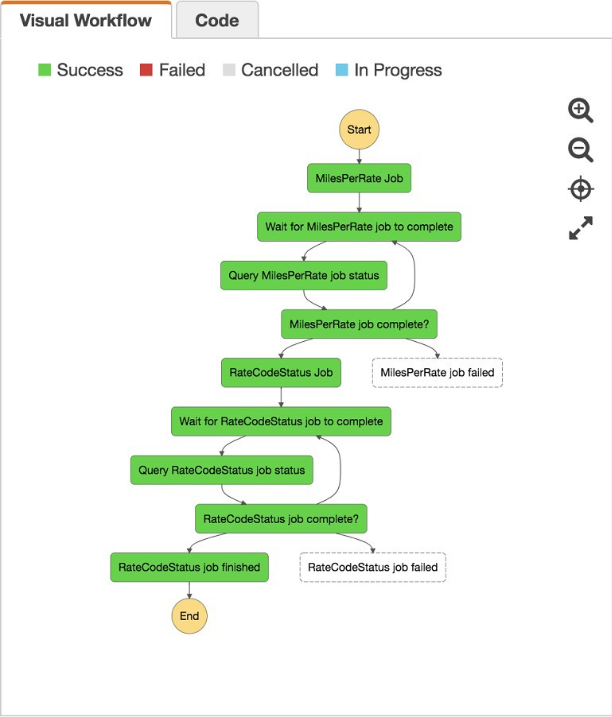
Figure 41: Multiple Apache Spark jobs orchestrated with AWS Step Functions
For more information on how to integrate AWS Step Functions to create orchestration for Hadoop-based jobs, see these blog posts:
AWS Glue Workflows
AWS Glue Workflows provides a visual interface for building and monitoring ETL pipelines on AWS. It integrates natively with AWS Glue Jobs, AWS Glue Crawlers, and AWS Glue Data Quality, and can trigger Amazon EMR Serverless jobs through Amazon EventBridge integration. It is well suited for organizations already invested in the AWS Glue ecosystem who want straightforward, AWS-native orchestration without the complexity of a full workflow engine.
Other Orchestration Options
Some open-source applications for orchestration have gained popularity due to community adoption and a rich feature set. This section covers Apache Airflow how this application can be used on AWS to create orchestration for Hadoop-based jobs.
Apache Airflow and Amazon MWAA
Airflow is an open-sourced task scheduler that helps manage ETL tasks. Apache Airflow workflows can be scheduled and managed from one central location. With Airflow's Configuration as Code approach, automating the generation of workflows, ETL tasks, and dependencies is easy. It helps developers shift their focus from building and debugging data pipelines to focusing on the business problems.
Amazon MWAA (Managed Workflows for Apache Airflow) is a fully managed service that makes it easy to run Apache Airflow on AWS without the operational overhead of managing the underlying infrastructure. Amazon MWAA supports Apache Airflow 3.x and scales Airflow workers automatically. It comes with a variety of connectors that help integrate it with different AWS services, including Amazon EMR on EC2, Amazon EMR Serverless, and Amazon EMR on EKS.
For more information on how Airflow can be used to build orchestration pipelines and how it can be integrated to run jobs on Amazon EMR, check the following posts on the AWS Big Data Blog:
Build a Concurrent Data Orchestration Pipeline Using Amazon EMR and Apache Livy
Orchestrate big data workflows with Apache Airflow, Genie, and Amazon EMR
Best practices for migrating from Apache Airflow 2.x to Apache Airflow 3.x on Amazon MWAA
Best Practices for Orchestration
-
There are some points to consider when building robust and fault-tolerant orchestration for Apache Hadoop-based jobs. Like Hadoop, an orchestration tool should be scalable so that it can handle a massive number of jobs and can scale proportionally with Hadoop scaling. Here are some of the best practices to consider when creating orchestration for Hadoop jobs:
-
Most orchestration applications use a default, embedded database to store job metadata. For production workloads, we recommend that you use a separate database for better performance and availability.
-
When possible, use serverless or managed orchestration services to reduce ongoing manual involvement.
-
Integrate with notification services, such as Amazon SNS and Amazon CloudWatch, so that appropriate parties are immediately notified upon failure and can be involved proactively.
-
Make sure that the orchestration application can handle both asynchronous and synchronous job and task execution for better performance and reduced overhead.
-
The orchestration application should monitor job execution and management so that developers can monitor everything centrally.
-
The orchestration application should be able to handle failure gracefully.
-
If you use Amazon MWAA, make sure to select the appropriate environment class and enable worker auto-scaling for production workloads.
-
Tag all EMR resources with cost allocation tags to support chargeback and showback in multi-tenant environments.
-
Store workflow definitions in a version-controlled repository and deploy them through a CI/CD pipeline for consistent and auditable changes.
Use the following table to determine the most appropriate orchestration application for your use case.
Table 5: Orchestration applications
| Factors/Use Cases | AWS Step Functions | Amazon MWAA (Airflow) | AWS Glue Workflows | Apache Oozie |
|---|---|---|---|---|
| Serverless | Yes | No (managed) | Yes | No |
| Spark-based jobs | Yes | Yes | Yes | Yes |
| Rich UI & troubleshooting tools | Yes | Yes | Limited | No |
| Integration with other monitoring tools | Yes | Yes | Limited | No |
| Interacting with AWS Services | Extensive | Good | Deep AWS native | Very Limited |
| EMR Serverless support | Yes | Yes | Yes | No |
| Administrative responsibilities | Serverless | Medium | Serverless | High |
| Hybrid environment – AWS and non-AWS services | Only in the cloud | Broad coverage | AWS only | Hadoop only |
MIGRATING APACHE SPARK
Apache Spark applications are a common workload on Amazon EMR. Because Amazon EMR clusters can be configured to use specific instance types and can easily scale out to many workloads, Apache Spark is effective for optimizing compute resources for both performance and cost.
Use Cases for Migrating Apache Spark
There are several use cases to consider when migrating Apache Spark applications to Amazon EMR. In many cases, the existing environment is one large cluster that has a specific number of resources dedicated to processing Spark jobs. With Amazon EMR, you can continue to use one large, shared cluster, use On-Demand Instance clusters to isolate resources on a per-job basis, or take advantage of Amazon EMR Serverless to run Spark jobs without managing clusters at all. The On-Demand Instance approach allows you to take advantage of different instance types in addition to ensuring that Spark is fully using the resources of each cluster. However, this approach does require more planning and automation around the creation of Amazon EMR clusters before running a Spark job.
Shared Cluster
In a shared cluster, be aware of how many concurrent jobs you expect to run at any given time. By default, EMR configures executors to use the maximum number of resources possible on each node through the usage of the maximizeResourceAllocation property. On a shared cluster, you will likely need to configure Spark cores, memory, and executors. For details, see Best practices for successfully managing memory for Apache Spark applications on Amazon EMR on the AWS Big Data Blog. The shared cluster is appropriate for interactive use cases, such as when you are using SageMaker Unified Studio or EMR Studio with JupyterLab notebooks. Note: The maximizeResourceAllocation setting is deprecated in EMR 7.x — use Spark's dynamic resource allocation or configure executor resources explicitly instead.
When using a shared cluster, we recommend that you use the dynamic allocation setting in Amazon EMR to both automatically calculate the default executor size and to allow resources to be given back to the cluster if they are no longer used. Dynamic allocation is enabled by default on Amazon EMR.
Dedicated Clusters per Job
Using a separate cluster per each Spark job is beneficial for scheduled Spark jobs. This approach helps isolate the Spark job to prevent resource contention, allows for optimization of the job depending on if it is a CPU-, GPU-, or memory-intensive workload, and ensures that you only pay for the resources you use during the duration of the job. The Amazon EMR maximizeResourceAllocation setting helps ensure that the entire cluster's resources are dedicated to the job. For more information, see Using maximizeResourceAllocation in the Amazon EMR Release Guide.
Amazon EMR Serverless
For scheduled or event-driven Spark jobs, Amazon EMR Serverless removes the need to provision, configure, or manage clusters entirely. With EMR Serverless, you submit Spark jobs directly to a serverless application and Amazon EMR automatically provisions the resources needed to run the job, scales them as the job progresses, and releases them when the job completes. This makes EMR Serverless well suited for ETL pipelines, batch processing, and any workload where cluster lifecycle management adds operational overhead without adding value.
bash
# Submit a Spark job to EMR Serverless aws emr-serverless start-job-run \ --application-id <<application-id>> \ --execution-role-arn arn:aws:iam::123456789:role/EMRServerlessRole \ --job-driver '{ "sparkSubmit": { "entryPoint": "s3://my-bucket/etl/spark-job.py", "entryPointArguments": ["--input", "s3://my-bucket/raw/", "--output", "s3://my-bucket/processed/"], "sparkSubmitParameters": "--conf spark.executor.cores=4 --conf spark.executor.memory=16g --conf spark.dynamicAllocation.enabled=true" } }'
Amazon EMR Spark Runtime
Amazon EMR runtime for Apache Spark is a performance-optimized runtime environment that is active by default on Amazon EMR clusters. The EMR runtime for Spark delivers significant performance improvements over open-source Spark with 100% API compatibility, meaning your existing Spark applications run faster without any code changes. Based on TPC-DS benchmarks at 3TB scale, the EMR runtime runs Apache Spark workloads up to 4.5 times faster than open-source Apache Spark 3.5.1, with 2.8 times better price performance on current-generation instance types with data stored in Amazon S3. These improvements mean that your workloads run faster, saving you compute costs without making any changes to your applications.
Optimize Cost with Amazon EC2 Spot Instances
A common way to decrease cost with Spark jobs on EMR is by using EC2 Spot Instances. Amazon EMR release version 5.9.0 and later includes built-in node decommissioning features at the EMR level that help ensure Spark gracefully handles node termination during manual resizes or automatic scaling events. Starting with Amazon EMR 5.11.0, the spark.decommissioning.timeout.threshold setting further improves Spark's resiliency on Spot Instances. Therefore, if you use Spot Instances, make sure that you are using Amazon EMR release version 5.11.0 or later.
When using Spot Instances, we recommend using Instance Fleets with multiple instance types across multiple Availability Zones to maximize the availability of Spot capacity. You can also configure the Spot allocation strategy to use capacity-optimized selection, which chooses instance pools with the highest available capacity to reduce the likelihood of interruption.
Use Instance Fleets
Instance fleets are a feature of Amazon EMR that allows you to specify target capacity based on a specific set of units. These units could represent cores, memory, or any arbitrary reference. Instance fleets are useful if you know that your Spark job requires a certain amount of resources, and you want to mix and match capacity across both EC2 instance type and Availability Zone. With instance fleets, you select a VPC network and a set of EC2 subnets, and the feature searches Availability Zones in the subnets you selected until it finds the desired capacity.
Instance fleets support Managed Scaling, which continuously evaluates cluster utilization and automatically adds or removes instances to optimize cost and performance. If you have a dynamic workload that requires fine-grained autoscaling control, you can also use Instance Groups with custom scaling policies. For more information on configuring your cluster, see Cluster Configuration Guidelines and Best Practices in the Amazon EMR Management Guide.
Apache Spark File Write Performance
In Amazon EMR 5.14.0, the default FileOutputCommitter algorithm was updated to use version 2 instead of version 1. This update reduces the number of renames, which improves application performance. Any Spark applications being migrated to EMR should use the most recent available Amazon EMR version to take advantage of this update and other performance improvements. Starting with Amazon EMR version 5.20.0, the EMRFS S3-optimized committer is enabled by default. This committer is an alternative Output Committer implementation optimized for writing parquet files to Amazon S3 when using EMRFS, improving both performance and reliability by avoiding the rename operations that are costly on S3. (Note: Starting with EMR 7.10, EMR S3A replaces EMRFS as the default S3 connector.)
For Amazon EMR 5.19.0, the EMRFS S3-optimized committer is available but not enabled by default. You can manually enable it by setting spark.sql.parquet.fs.optimized.committer.optimization-enabled to true — either through the spark-defaults configuration classification when creating a cluster, or at runtime via --conf in spark-submit, spark-sql, or the Spark shell. Any Spark applications being migrated to EMR should use the most recent available Amazon EMR version to take advantage of these and other performance improvements. (Note: Starting with EMR 7.10, EMR S3A replaces EMRFS as the default S3 connector.)
Amazon S3 Select with Apache Spark
In certain scenarios, using S3 Select with Spark can result in both increased performance and decreased amount of data transferred between Amazon EMR and Amazon S3. S3 Select allows applications to retrieve only a subset of data from an object. As of EMR 5.17.0, S3 Select is supported with CSV and JSON files. If your query filters out more than half of the original dataset and your network connection between Amazon S3 and EMR has good transfer speed, S3 Select may be suitable for your application. For workloads that require more advanced filtering, consider using columnar file formats such as Parquet or ORC combined with Apache Iceberg, which provides partition pruning and column statistics to minimize data scanned without relying on S3 Select.
AWS Glue Data Catalog
For Amazon EMR 5.8.0 and later, Spark supports using the AWS Glue Data Catalog as the metastore for Spark SQL. If you plan to migrate to Spark on EMR, first determine if you can migrate your existing metastore to AWS Glue. Using AWS Glue Data Catalog has the benefit of not just being a managed metadata catalog, but it also integrates with several different AWS products, including Apache Trino and Apache Hive on EMR, Amazon Athena, Amazon Redshift Spectrum, Amazon SageMaker, and Amazon Data Firehose. In combination with AWS Glue crawlers, the Data Catalog can generate schema and partitions and provide fine-grained access control to databases and tables. The AWS Glue Data Catalog also supports Apache Iceberg, Apache Hudi, and Delta Lake table formats natively, making it a central metadata store for multi-engine lakehouse architectures.
Amazon EMR provides two conversational AI agents — the Spark Upgrade Agent and the Spark Troubleshooting Agent — that accelerate Spark version upgrades and simplify failure diagnosis. The Upgrade Agent converts complex upgrades (Spark 2.4 → 3.5/4.x) from months to weeks through automated code analysis and validation. The Troubleshooting Agent reduces debugging time from hours to minutes by analyzing logs, metrics, and configurations. Both agents are available at no additional cost with Amazon EMR. For full details including architecture, setup instructions, and migration workflow integration, see the dedicated Spark Agents chapter.
Other ways of troubleshooting Apache Spark Jobs on an Amazon EMR Cluster
To debug common issues, view the history and log files of these applications:
-
For Spark Web UIs, access the Spark HistoryServer UI at port 18080 of the EMR cluster's primary node. For Amazon EMR Serverless, the Spark History Server is available directly in the EMR Studio console without requiring SSH or port forwarding. For more information, see Accessing the Spark Web UI.
-
For YARN applications, including Spark jobs, access the Application history tab in the Amazon EMR console. Application history is retained for up to 30 days, including details on task and stage completion for Spark. For more information, see View Application History.
-
By default, Amazon EMR clusters launched via the console automatically archive log files to Amazon S3. You can find raw container logs in Amazon S3 and view them while the cluster is active and after it has been terminated. For Amazon EMR Serverless, logs can be directed to both Amazon S3 and Amazon CloudWatch Logs. For more information, see View Log Files
Migrating Apache Hive to Amazon EMR
Apache Hive is one of the popular applications used by Amazon EMR customers as a data warehouse. As with any migration, you have several considerations to make.
This guide covers key migration topics, updated through Amazon EMR 7.12.0, and incorporates the latest improvements in metastore management, execution engines, storage, high availability, and encryption.
Hive Metastore
By default, Amazon EMR clusters are configured to use a local instance of MySQL as the Hive metastore. To allow for the most effective use of Amazon EMR, you should use a shared Hive metastore, such as Amazon RDS, Amazon Aurora, or AWS Glue Data Catalog. If you require a persistent metastore, or if you have a metastore shared by different clusters, services, applications, or AWS accounts, we recommend that you use an AWS Glue Data Catalog as a metastore for Hive. For more information, see Configuring an External Metastore for Hive.
Upgrading
Hive upgrades coupled with Hive metastore updates. The Hive metadata database should be backed up and isolated from production instances because Hive upgrades may change the Hive schema, which can cause compatibility issues and problems in production. You can perform upgrades using the upgradeSchema command in the Hive Schema Tool. You can also use this tool to upgrade the schema from an older version to the current version
Upgrading the Hive Metastore Across EMR Major Versions
When upgrading across Amazon EMR major versions, the Hive metastore schema must be updated to match the version of Hive shipped with the target EMR release. This applies to both EMR 5.x → 6.x and EMR 6.x → 7.x upgrades. You have two primary options:
Option 1: Using the Hive Schema Tool
Run the upgradeSchema command to migrate your existing metastore database schema to the version required by Hive on the target EMR release. Before running the upgrade, back up your metastore database and validate the upgrade against a staging environment. The schema upgrade is not reversible.
To upgrade using the Hive Schema Tool:
/usr/lib/hive/bin/schematool -dbType mysql -upgradeSchemaFrom <source-version> -upgradeSchema
Note: Both EMR 6.x and EMR 7.x ship with Hive 3.1.3. If you are upgrading from EMR 6.x to 7.x and your metastore schema is already at the Hive 3.1.3 schema version, a schema upgrade may not be required. However, you should still validate your metastore compatibility in a staging environment before migrating production workloads.
Option 2: Migrating to AWS Glue Data Catalog
An alternative approach is to migrate the metastore to AWS Glue Data Catalog, which eliminates the need to manage metastore schema upgrades across EMR versions and provides a fully managed, serverless metadata catalog. AWS Glue Data Catalog is compatible with the Apache Hive metastore and can be used as a drop-in replacement. To configure Hive to use AWS Glue Data Catalog, set hive.metastore.client.factory.class to com.amazonaws.glue.catalog.metastore.AWSGlueDataCatalogHiveClientFactory in the hive-site classification when creating the cluster.
Additional Considerations for EMR 7.x
When upgrading to EMR 7.x, be aware of the following changes beyond the metastore schema :
-
Default filesystem change (EMR 7.10.0+): Starting with EMR 7.10.0, S3A replaces EMRFS as the default S3 connector. This means Hive operations will no longer create _$folder$ marker objects in S3, and intermediate manifest files will be stored differently. Review the EMRFS to S3A migration guide for detailed considerations.
-
Java runtime: Amazon EMR 7.0 and higher use Amazon Corretto 17 (OpenJDK 17) by default, which may affect custom UDFs or Hive extensions compiled against older Java versions.
-
Amazon Linux 2023: EMR 7.x clusters run on Amazon Linux 2023, which removed Python 2.7.
Design Patterns for Hive Metastore on EMR on EKS
For customers running Hive workloads on Amazon EMR on EKS, the Hive Metastore Service (HMS) can be deployed using three design patterns, each with different trade-offs for isolation, resource efficiency, and operational complexity:
-
Sidecar Container Pattern: The HMS runs as a sidecar container within the same Kubernetes pod as the Hive application. This pattern is suitable for development or small workloads where isolation between the HMS and Hive engine is acceptable. Resources are shared within the pod, reducing overhead, but the HMS lifecycle is tied to the application pod.
-
Cluster-Dedicated Pattern: A dedicated HMS instance is deployed for each EMR on EKS virtual cluster. The HMS runs as a separate Kubernetes deployment within the cluster namespace, providing isolation between different virtual clusters. This pattern is recommended for production workloads where each team or environment requires its own metastore with independent scaling.
-
External HMS Pattern: A centralized, external HMS instance is deployed outside the EKS cluster and shared across multiple EMR on EKS virtual clusters or other compute environments. This pattern is recommended for organizations with multiple clusters that need to share metadata across different execution engines (Hive, Spark, Trino). The external HMS can be backed by Amazon RDS or Amazon Aurora for high availability. Configure Hive to connect to the external HMS by specifying the hive.metastore.uris property.
Note: For production deployments on EMR on EKS, AWS recommends the External HMS pattern backed by Amazon Aurora or Amazon RDS, combined with AWS Glue Data Catalog for catalog synchronization where cross-service metadata sharing is required.
Hive Execution Engine
Apache Tez is the supported and default execution engine for Hive clusters on Amazon EMR. In most cases, Tez provides improved performance. However, if you are migrating from the older version of Hive that used the MapReduce execution (MR) engine, certain jobs may require changes.
Hive 3.1.3 added support for Apache Spark as an execution engine, but this setup is not supported on Amazon EMR without changes to the underlying Hive jars in Spark. This is not a supported configuration on Amazon EMR.
Tez Container Size
If you have large input files that cannot be split, or if the map portion of a job exceeds the default memory limits of a container, you will require a larger Tez container size. On Amazon EMR, the default container setting is hive.tez.container.size and is set to -1. This means that the value of mapreduce.map.memory.mb is used for the memory limit. The default values of mapreduce.map.memory.mb depend on the specific instance type selected for your EMR cluster. For this setting and other default values, see Task Configuration.
The desired value of the Tez container size depends upon the specifics of your job. It must be at least the same value as the mapreduce.map.memory.mb setting.
If the Tez container runs out of memory, the following error message appears:
Error: GC overhead limit exceeded
To increase the memory, set hive.tez.container.size to a value greater than what is required for the job. The memory value required for the job can be found in the error message. In addition to container size, increase the Tez Java Heap size. In general, the Tez Java Heap size should be 80% of the Tez Container size. You can adjust the value of the Tez Java Heap size with the setting hive.tez.java.opts.
Recent Tez Release Improvements
Amazon EMR has shipped several Tez-related improvements in recent releases. The following improvements were added in the respective releases:
Amazon EMR 7.4.0
-
Upgraded Hadoop to version 3.4.0, bringing improved stability and performance for HDFS and YARN operations.
-
Enabled short-circuit mechanism in Tez DAG for simple SELECT queries with LIMIT, reducing unnecessary DAG stages and improving query latency for these query patterns.
-
Allowed flattening of table subdirectories when using the Tez execution engine with UNION clause, improving write performance and simplifying output directory structure for UNION ALL queries.
Amazon EMR 7.5.0
-
Increased the maximum wait time for the Tez session to 10 seconds, reducing timeout failures in scenarios with high cluster load or slow session initialization.
-
Tuned configuration parameters for improved performance in simple SELECT queries with LIMIT, reducing overhead for these common interactive query patterns.
Amazon EMR 7.6.0
- Added fast Amazon S3 partition discovery via the hive.exec.fast.s3.partition.discovery.enabled configuration property. When enabled, this feature significantly reduces partition discovery time for large tables stored on Amazon S3 by using optimized directory listing.
"hive.exec.fast.s3.partition.discovery.enabled": "true"
- Magic Committer in-memory tracking improvements: Enhanced the Magic Committer to reduce memory pressure during large write operations, improving reliability for high-throughput Hive jobs writing to Amazon S3.
HDFS vs Amazon S3 Considerations
A benefit of Amazon EMR is the ability to separate storage and compute requirements with Amazon S3 as your primary data store. This approach allows you to save costs compared to HDFS by scaling your storage and compute needs up or down independently. Amazon S3 provides infinite scalability, high durability and availability, and additional functionality such as data encryption and lifecycle management. That said, Hadoop was designed with the expectation that the underlying filesystem would support atomic renames and be consistent. There are several options to consider if you require immediate list and read-after-write consistency as part of your workflow.
Amazon S3 Strong Consistency
As of December 2020, Amazon S3 delivers strong read-after-write consistency for all GET, PUT, and LIST operations. This eliminates the eventual-consistency scenarios that previously required EMRFS Consistent View (deprecated June 2023, not available in EMR 7.x). No additional configuration is required. For details on the EMRFS to S3A transition starting with EMR 7.10, see the Data Migration chapter.
Hive Tez Merge Files
When using the EMRFS S3-Optimized Committer (zero-rename committer), enabling Hive to merge small files automatically (hive.merge.tezfiles) is not supported. When merge is enabled, the default Hive commit logic will be used even when the optimized committer is enabled, bypassing the write performance benefits of the committer. If small file merging is required, an alternative would also be performing any INSERT OVERWRITE or ALTER CONCATENATE statements on transient HDFS-backed Amazon EMR clusters and copying the results back to Amazon S3 using s3-dist-cp.
Other ways that Amazon EMR customers have solved large-scale consistency issues include implementing a custom manifest file approach to their jobs instead of using Amazon S3 list operations to retrieve data, or by building their own metadata stores, such as Apache Iceberg.
Hive Blobstore Optimization
Hive blobstore optimizations are intended to increase the performance of intermediate MapReduce jobs on Hive. However, when performing simple Hive queries with Amazon S3-backed tables, such as INSERT OVERWRITE or ALTER TABLE CONCATENATE, this setting can sometimes result in increased execution times and missing data. This issue is caused by implementing that feature on queries that are not multi-staged MapReduce jobs. This scenario results in Hive using Amazon S3 as the scratch directory during the job. As a result, the number of renames on Amazon S3 increases as the job progresses through writing scratch data, copying to another Amazon S3 temporary location, and finally copying to the final Amazon S3 location.
If you disable this setting, the scratch directory for the job is relocated to HDFS. If you prefer this scenario, make sure to allocate enough space on the Amazon EMR cluster to accommodate this change. By default, the distcp job that occurs at the end of the process is limited to a maximum of 20 mappers. If you find this job is taking too long, particularly if you are processing terabytes of data, you can manually set the number of max mappers using the following setting in your Hive job:
set hive.exec.copyfile.maxnummaps=100;
EMRFS S3-Optimized Committer (Zero-Rename)
Available from Amazon EMR 6.5.0 and Amazon EMR 5.34.0+, the EMRFS S3-Optimized Committer (also referred to as the zero-rename committer) delivers up to 15x improvement in Hive write performance by eliminating the expensive rename operations that standard Hadoop output committers perform when writing to Amazon S3.
Traditional Hadoop output committers write data to a temporary location on Amazon S3 and then rename the files to their final location upon job completion. Because Amazon S3 does not natively support atomic renames, this rename operation is implemented as a copy-then-delete, which is slow and resource-intensive for large datasets. The EMRFS S3-Optimized Committer avoids this by writing data directly to the final output location, using a manifest-based approach to track output files and ensure job completion atomicity.
To enable the EMRFS S3-Optimized Committer for Hive workloads:
"hive.blobstore.use.blobstore.as.scratchdir": "false",
"hive.exec.stagingdir": "/tmp/hive-staging"
Note: The EMRFS S3-Optimized Committer is enabled by default for new clusters running Amazon EMR 6.5.0 and later. For Amazon EMR 5.x clusters, you need to explicitly configure it using the emrfs-site classification. (Note: Starting with EMR 7.10, EMR S3A replaces EMRFS as the default S3 connector.)
The official blog post with performance benchmarks is:
🔗 Up to 15 times improvement in Hive write performance with the Amazon EMR Hive zero-rename feature
Accelerate Apache Hive read and write on Amazon EMR using enhanced S3A
MSCK Optimization
The hive.emr.optimize.msck.fs.check configuration property was introduced in Amazon EMR 6.5.0 and is enabled by default starting in Amazon EMR 6.8.0. This optimization significantly improves partition repair performance on large tables with hundreds or thousands of partitions stored on Amazon S3.
The standard MSCK REPAIR TABLE command performs a full filesystem check by listing all directories under the table location on Amazon S3. For large tables with many partitions, this can be extremely slow due to the volume of Amazon S3 LIST API calls required. The hive.emr.optimize.msck.fs.check optimization reduces the number of filesystem operations by using a more efficient partition discovery mechanism that leverages Amazon S3 metadata and listing optimizations.
Configuration:
"hive.emr.optimize.msck.fs.check": "true"
For Amazon EMR 6.5.0 through 6.7.x, explicitly set this property. For Amazon EMR 6.8.0 and later, this optimization is enabled by default.
Amazon S3 Express One Zone Considerations
Starting in Amazon EMR 7.6.0, support was added for Amazon S3 Express One Zone with Hive Insert Overwrite queries. Amazon S3 Express One Zone is a high-performance storage class designed for latency-sensitive applications, offering single-digit millisecond request latency and higher request throughput compared to standard Amazon S3.
When using Amazon S3 Express One Zone as the target storage for Hive Insert Overwrite queries, consider the following:
-
Amazon S3 Express One Zone directory buckets use a different namespace and endpoint than standard Amazon S3 buckets. Hive configurations and output paths must use the s3a://.
-
The EMRFS S3-Optimized Committer is compatible with Amazon S3 Express One Zone and is recommended for optimal performance.
-
Amazon S3 Express One Zone is a single-AZ storage class. For workloads requiring multi-AZ durability, use standard Amazon S3 or Amazon S3 Standard-IA.
Job Throughput and Scheduling
By default, Amazon EMR uses the Hadoop CapacityScheduler to allocate resources in the cluster. The CapacityScheduler allows for large cluster sharing and provides capacity guarantees for each organization. The CapacityScheduler supports queues that can allow an organization to grant capacity in a multitenant cluster. You can configure the CapacityScheduler by modifying the capacity-scheduler classification during Amazon EMR cluster creation.
In some cases, the FairScheduler may be more desirable for clusters where it is acceptable for a job to consume unused resources. In FairScheduler, resources are shared between queues.
Configure FairScheduler
You can configure FairScheduler in a couple ways when creating an Amazon EMR cluster.
Method 1: Modify the yarn-config.json file. Use the following configuration in the yarn-config.json file:
[
{
"Classification": "yarn-site",
"Properties": {
"yarn.resourcemanager.scheduler.class": "org.apache.hadoop.yarn.server.resourcemanager.scheduler.fair.FairScheduler"
}
}
]
Method 2: Edit software settings in the AWS Management Console:
-
Sign in to the AWS Management Console and open the Amazon EMR console at https://console.aws.amazon.com/elasticmapreduce/.
-
Choose Create cluster, Go to advanced options.
-
Under Edit software settings, leave Enter configuration selected and enter the FairScheduler configuration.
-
Choose Create cluster.
Maintaining a Highly Available Hive-Based Cluster
Hive clusters are often long running due to the nature of ad hoc queries that can come in at any time. There are several approaches to maintaining a highly available Hive-based cluster.
Warm Failover
In a warm failover scenario, a secondary, smaller cluster is kept running in addition to the primary cluster. If a failure occurs, clients can be redirected to the new cluster, either manually or by updating an entry in Amazon Route 53. You can configure the secondary cluster with a small number of nodes, and then if it becomes the primary cluster, use automatic scaling to increase the number of nodes.
Multi-Cluster Configuration
Because all data is stored on Amazon S3, all clients do not need to go through the same cluster. You can configure multiple clusters with a load balancer or expose a job submission framework to consumers of the environment. These clusters can be shared among all clients or shared on a per-team basis depending on internal requirements. One of the benefits of this approach is that in the event of a cluster failure, the impact to your users is limited to just those queries executing on the single cluster that fails. In addition, you can configure automatic scaling so that each cluster scales independently of each other. If the clusters are segmented on a per-team basis, this approach ensures that any one team's jobs don't impact the performance of another team's jobs.
However, using multiple clusters means using multiple master nodes, one each for a cluster. Therefore, you need additional EC2 instances that you wouldn't have to pay for if you used only a single cluster.
With the EC2 instance pricing model of pay-per-second with a one-minute minimum, in the case of multiple clusters, you can save costs by choosing to activate only the cluster needed to perform the tasks rather than running one single cluster all the time. You can configure the logic for this setup inside an AWS Lambda function that calls the activation on the pipeline. Then, you can start up or take down a cluster without impacting another cluster's activities.
Transient Design
Transient clusters can mitigate the cost and operational requirements of having a single, long-running cluster. This approach is useful if you have predictable short-lived jobs, but may not be appropriate if you have consumers that are constantly querying data on an ongoing basis.
Single-Click High Availability
Amazon EMR now supports single-click high availability for multi-master configurations, providing automatic failover capabilities without the manual complexity of managing warm failover setups. This feature is available when you create a cluster with three master nodes.
With single-click HA, the following services support automatic failover to a standby master node:
-
YARN ResourceManager: Automatic failover is handled by ZooKeeper-based leader election between the active and standby ResourceManagers. In the event of an active master node failure, the standby ResourceManager becomes active within seconds.
-
HDFS NameNode: HDFS high availability is provided through an active-standby NameNode configuration with shared edit logs stored in JournalNodes. Automatic failover is coordinated via ZooKeeper.
-
Apache Spark: Spark history server and driver recovery are supported in the multi-master configuration.
-
Apache HBase: HBase Master failover is automatic, with a standby HBase Master ready to take over in the event of a primary Master failure.
-
Apache Hive: The HiveServer2 (HS2) instances can be configured for high availability using ZooKeeper-based service discovery. Clients connect to a ZooKeeper ensemble that routes connections to an available HS2 instance, enabling transparent failover without client reconfiguration.
To create a multi-master cluster with single-click HA:
aws emr create-cluster \
--release-label emr-7.10.0 \
--instance-groups InstanceGroupType=MASTER,InstanceCount=3,InstanceType=m5.xlarge \
--applications Name=Hive Name=Spark Name=HBase \
--multi-master-enabled
Note: Multi-master clusters require at least three master nodes for ZooKeeper quorum. The cluster must use Amazon S3 as the primary storage backend, as HDFS data must be accessible from any master node. This configuration is supported on Amazon EMR 5.23.0 and later, with automatic failover fully supported on Amazon EMR 6.x and 7.x.
Frequently Asked Questions
How do I implement transactions and compactions on Amazon EMR?
Transactions and compactions on Amazon EMR can be implemented by using Apache Hudi starting in Amazon EMR release 5.28.0. Apache Hudi is an open-source data management framework used to simplify incremental data processing and data pipeline development. For more information, see the Incremental Data Processing section in this guide.
How do I troubleshoot loading data from Amazon S3?
A common mistake is using Amazon S3 like a typical file system. There are certain differences that you must consider if you're moving from HDFS to Amazon S3. For details, see the Amazon EMR documentation for troubleshooting S3 data loading issues.
Does Amazon EMR support Hive LLAP?
Amazon EMR release 6.0.0 and later supports the Live Long and Process (LLAP) functionality for Hive. Hive LLAP uses persistent daemons with intelligent in-memory caching to improve query performance compared to the previous default Tez container execution mode. For more details on using Hive LLAP, see Amazon EMR Hive LLAP.
The Hive LLAP daemons are managed and run as a YARN service. Since a YARN service can be considered a long-running YARN application, some of your cluster resources are dedicated to Hive LLAP and cannot be used for other workloads. For more information, see LLAP and YARN Service API.
Magic Committer Integration in Hive LLAP (EMR 7.6.0)
Starting in Amazon EMR 7.6.0, the Magic Committer integration for Hive LLAP has been updated with a new configuration property to improve compatibility with Amazon S3 write operations from LLAP daemons:
"hive.blobstore.output-committer.magic.disable.fs.cache.for.llap": "true"
This property disables the filesystem cache for the Magic Committer when running with Hive LLAP. In LLAP mode, multiple LLAP daemons may attempt to write to Amazon S3 simultaneously using shared filesystem client instances, which can cause stale cache entries and incomplete writes. By disabling the filesystem cache for the committer, each write operation uses a fresh filesystem client, ensuring correct and complete output.
This configuration is recommended for all Amazon EMR 7.6.0+ clusters running Hive workloads with LLAP enabled and writing to Amazon S3.
Table Format Selection for Multi-Tenant Environments
When implementing multi-tenancy on Amazon EMR, selecting the right open table format is critical for ensuring data isolation, concurrent access, and operational simplicity across tenants.
For multi-tenant architectures on Amazon EMR, Apache Iceberg is the recommended table format. Iceberg provides snapshot isolation, branch-based write isolation (WAP patterns), row-level access control via AWS Lake Formation (EMR 6.15.0+), concurrent writers with optimistic concurrency control, partition evolution without data rewrites, and catalog-level governance through AWS Glue Data Catalog.
Apache Hudi remains appropriate for specific multi-tenant scenarios requiring high-frequency upsert workloads, near-real-time streaming ingestion via Apache Flink, or workloads already built on Hudi with established operational runbooks.
For a detailed comparison of Apache Iceberg, Apache Hudi, and Delta Lake — including version compatibility, feature matrices, and migration guidance — see the Incremental Data Processing chapter.
| EMR Series | Latest EMR Release | Hudi Version |
|---|---|---|
| EMR 7.x | emr-7.10.0 (latest) | Hudi 1.0.2-amzn-1 (emr-7.12.0) |
| EMR 6.x | emr-6.15.0 (latest) | Hudi 0.14.0-amzn-0 (emr-6.15.0) |
| EMR 5.x | emr-5.36.2 (latest) | Hudi 0.10.1-amzn-1 (emr-5.36.2) |
Encryption
Amazon EMR provides multiple encryption options for Hive workloads, including encryption of data at rest and in transit. The following subsections describe Parquet modular encryption for data written by Hive and in-transit encryption for HiveServer2 (HS2) connections.
Parquet Modular Encryption in Hive
Parquet Modular Encryption (PME) enables column-level encryption of Parquet files written by Hive. This allows sensitive columns within a Parquet file to be encrypted independently, while non-sensitive columns remain readable without decryption. PME is particularly useful for compliance scenarios where different users or roles have access to different subsets of columns in the same dataset.
Parquet Modular Encryption on Amazon EMR uses the Apache Parquet encryption specification and integrates with AWS Key Management Service (AWS KMS) for key management. Key features include:
-
Column-level encryption: Individual columns within a Parquet file can be encrypted with different encryption keys.
-
Footer encryption: The Parquet file footer (which contains schema and column statistics) can optionally be encrypted to prevent schema exposure.
-
Key management via AWS KMS: Encryption master keys are stored and managed in AWS KMS. Column encryption keys are wrapped using the master key, enabling fine-grained access control via AWS KMS key policies and IAM permissions.
-
Transparent read access: Readers with access to the appropriate KMS key can read encrypted columns transparently, without changes to query syntax.
To enable Parquet Modular Encryption for Hive tables, configure the following properties in hive-site.xml or via the hive-site classification:
"parquet.encryption.kms.client.class": "org.apache.parquet.crypto.keytools.mrcrypto.MREncryptionClient",
"parquet.encryption.key.list": "keyA: <base64-encoded-key>, keyB: <base64-encoded-key>",
"parquet.encryption.column.keys": "keyA: SSN, CreditCardNumber; keyB: Salary"
Note: Parquet Modular Encryption requires that all Parquet readers (including Spark and Trino on the same cluster) be configured with compatible encryption settings and have access to the required KMS keys. Ensure that the EMR instance profile has the appropriate AWS KMS permissions (kms:GenerateDataKey, kms:Decrypt) for the configured master keys.
In-Transit Encryption in HiveServer2 (HS2)
HiveServer2 (HS2) supports in-transit encryption for client connections using TLS/SSL. Encrypting HS2 traffic protects data in transit between Hive clients (such as JDBC/ODBC applications, Beeline, and data visualization tools) and the HS2 server on the Amazon EMR master node.
Amazon EMR provides two approaches for configuring HS2 in-transit encryption:
Using EMR Security Configurations
The recommended approach for configuring HS2 in-transit encryption is to use Amazon EMR Security Configurations. When you enable in-transit encryption in a security configuration, Amazon EMR automatically configures HS2 to use TLS with a certificate managed by the security configuration. This approach simplifies certificate management and ensures consistent encryption configuration across all services.
To create a security configuration with in-transit encryption:
aws emr create-security-configuration \
--name "hive-encryption-config" \
--security-configuration '{
"EnableInTransitEncryption": true,
"InTransitEncryptionConfiguration": {
"TLSCertificateConfiguration": {
"CertificateProviderType": "PEM",
"S3Object": "s3://your-bucket/certs/my-cert.zip"
}
}
}'
Manual TLS Configuration for HS2
For more granular control, you can manually configure TLS for HiveServer2 using the hive-site classification. This approach requires you to manage the TLS certificates and keystore/truststore files on the cluster:
"hive.server2.use.SSL": "true",
"hive.server2.keystore.path": "/etc/pki/tls/keystore.jks",
"hive.server2.keystore.password": "<keystore-password>",
"hive.server2.truststore.path": "/etc/pki/tls/truststore.jks",
"hive.server2.truststore.password": "<truststore-password>"
When HS2 TLS is enabled, Beeline clients must connect using the ssl=true parameter and provide the truststore location:
beeline -u "jdbc:hive2://master-node:10000/default;ssl=true;sslTrustStore=/path/to/truststore.jks;trustStorePassword=<password>"
Note: In-transit encryption for HS2 adds a small overhead to connection establishment due to TLS handshake. For high-throughput JDBC/ODBC workloads, consider using connection pooling to minimize the impact of TLS handshake latency. In-transit encryption is strongly recommended for all production clusters and is required for compliance with most security frameworks (SOC 2, PCI DSS, HIPAA).
Amazon EMR Version Coverage
This document covers Amazon EMR Hive features and release notes through Amazon EMR 7.12.0 (November 2025). The following table summarizes the major Hive-related milestones across Amazon EMR versions referenced in this document:
| EMR Version | Key Hive Feature | Section Reference |
|---|---|---|
| 5.28.0+ | Apache Hudi introduced | Apache Hudi |
| 5.34.0+ | EMRFS S3-Optimized Committer | EMRFS S3-Optimized Committer |
| 6.0.0+ | Hive LLAP support | Hive LLAP (FAQ) |
| 6.1.0+ | Hudi + Trino integration | Apache Hudi |
| 6.5.0+ | EMRFS S3-Optimized Committer; MSCK Optimization | Storage Considerations (Amazon S3) |
| 6.8.0+ | MSCK Optimization enabled by default | Storage Considerations (Amazon S3) |
| 7.4.0 | Tez DAG improvements; Hadoop 3.4.0 | Execution Engine (Tez) |
| 7.5.0 | Tez session wait time; performance tuning | Execution Engine (Tez) |
| 7.6.0 | Fast S3 partition discovery; S3 Express One Zone; LLAP Magic Committer | Execution Engine; Storage; LLAP |
| 7.10.0 | Coverage through this version | All sections |
Amazon EMR Notebooks (now integrated into EMR Studio Workspaces)
Note: For new migrations, SageMaker Unified Studio (SMUS) is the recommended notebook and IDE environment. The EMR Studio Workspaces content below remains relevant for organizations with existing EMR Studio deployments or requirements not yet supported in SMUS (see the Phase 5 advisory in the Security chapter for selection guidance).
Amazon EMR Notebooks provide capability for SQL developers and data engineers to run ad-hoc queries using managed Jupyter notebooks within the Amazon EMR console. Unlike a traditional notebook, the contents of an EMR notebook — equations, queries, models, code, and narrative text within notebook cells — run in a client, with commands executed using a kernel on the EMR cluster. The notebook contents are saved to Amazon S3 separately from cluster data for durability and flexible re-use.
This approach provides the flexibility to detach a notebook from a running cluster and attach the EMR notebook to a different cluster that is, one notebook is not locked to a single cluster and can at any time be linked to a cluster with different configurations if the cluster meets the requirements mentioned here.
Several EMR notebooks can be attached to the same cluster, and multiple users can attach notebooks to the same cluster simultaneously and share notebook files in Amazon S3 with each other. These features let you run clusters on demand to save cost, and reduce the time spent re-configuring notebooks for different clusters and datasets. this multi-tenant capability is based on the memory constraints of the master node instance type.
You can configure AWS IAM roles so that the notebook of one IAM user cannot be seen or accessed by another user in the same account. EMR Notebooks also provide seamless Git and BitBucket integration – users can link their Git repositories (GitHub, CodeCommit, Bitbucket, or any Git provider via URL) to an EMR notebook and check in their code to one or more linked repositories.
HEADLESS (PROGRAMMATIC) EXECUTION
EMR Notebooks also support headless (programmatic) execution via the Amazon EMR API — without needing to interact with the console. To enable this, include a cell in the notebook with a parameters tag, which allows a script to pass new input values. Parameterized notebooks can be reused with different sets of input values without making copies. Amazon EMR creates and saves the output notebook on S3 for each run.
VERSION REQUIREMENT: EMR Notebooks support clusters using Amazon EMR releases 5.18.0 and higher. AWS recommends using the latest EMR version, or at least 5.30.0, 5.32.0+, or 6.2.0+. with these releases, Jupyter kernels run on the attached cluster rather than on a Jupyter instance, improving performance and enhancing your ability to customize kernels and libraries.
ADVANCED AI-POWERED FEATURES
Amazon EMR now includes AI-powered features that automate code upgrades and simplify troubleshooting for modern data engineering workloads, alongside new security and session management capabilities.
AI-Powered Features
Spark Upgrade Agent
The Spark Upgrade Agent automates PySpark and Scala code upgrades using natural language prompts. It handles API changes, resolves dependency conflicts, validates compatibility, and supports migrations from Spark 2.4 through 3.5/4.x — significantly reducing manual effort across EMR versions.
Spark Troubleshooting Agent
The Spark Troubleshooting Agent analyzes failed Spark jobs, pinpoints performance bottlenecks, and suggests targeted code fixes for EMR, AWS Glue, and Amazon SageMaker workloads. It delivers actionable recommendations derived from job logs and execution context, streamlining the debugging process.
Security and Session Management
IAM Identity Center Background Sessions
EMR Studio supports running long Spark workloads after logoff via trusted identity propagation through IAM Identity Center. Users can disconnect from the console without interrupting active jobs, enabling uninterrupted execution of extended data processing tasks.
Fine-Grained Access Control
EMR now enforces table-level permissions for Apache Hudi, Apache Iceberg, and Delta Lake tables through AWS Lake Formation. This ensures users can only access data they are authorized to query or modify. The feature is available from EMR 6.15.0+, with full IAM Identity Center integration from EMR 7.2.0+.
EMR STUDIO INTEGRATION
EMR Studio provides a unified, web-based integrated development environment for Jupyter notebooks running on Amazon EMR clusters. the following features are available through EMR Studio integration:
UNIFIED CONSOLE ACCESS
EMR Studio provides a single console experience for creating, managing, and running notebooks. users can access all workspaces, attached clusters, and job history from a centralized interface within the Amazon EMR console.
ENHANCED CLUSTER MANAGEMENT
EMR Studio enables seamless cluster attachment and detachment directly from the notebook workspace. users can switch between clusters without losing notebook state and can monitor cluster health and resource utilization in real time.
SQL EXPLORER
SQL Explorer feature allows users to browse and query data using SQL-based exploration tools directly within EMR Studio. users can discover tables, preview data, and run ad-hoc queries against Glue Data Catalog and self-hosted Hive Metastore (v3.1). Requires a Presto or Trino cluster.
SERVICE CATALOG INTEGRATION
EMR Studio integrates with AWS Service Catalog to allow governed cluster creation. administrators can define pre-approved cluster templates, and users can provision EMR clusters from those templates directly within EMR Studio without requiring direct AWS console access.
REAL-TIME COLLABORATION
EMR Studio supports real-time collaboration on notebooks, enabling multiple users to co-edit a notebook simultaneously. this feature improves team productivity and enables interactive data exploration across distributed teams.
Important: Workspace collaboration is NOT supported when Trusted Identity Propagation (TIP) is enabled, or with EMR Serverless interactive applications. If your migration uses TIP (recommended for fine-grained access control), real-time collaboration is not available in EMR Studio.
PIPELINE INTEGRATION
EMR Studio supports integration with data pipeline orchestration tools, enabling notebooks to be scheduled and executed as part of larger data workflows. parameterized notebooks can be triggered programmatically via the Amazon EMR API.
SIMPLIFIED DEBUGGING
EMR Studio includes built-in access to Spark UI, YARN Timeline Service, and job logs for diagnosing and resolving issues with Spark jobs. users can navigate directly from a notebook to the relevant diagnostic views without leaving the EMR Studio interface.
CLUSTER REQUIREMENTS
Before attaching a cluster to an EMR notebook, ensure the cluster meets all the following requirements:
SUPPORTED EMR RELEASES
-
supported: Amazon EMR 5.18.0 and higher
-
recommended: EMR 6.2.0+ or 7.0.0+
REQUIRED APPLICATIONS
-
Hadoop must be installed on the cluster
-
Spark must be installed on the cluster
-
Livy must be installed on the cluster
-
Jupyter Enterprise Gateway is required for EMR 5.32.0+ and 6.2.0+
UNSUPPORTED INSTANCE TYPES
-
AMD EPYC processor-based instances (m5a.*, r5a.*).
-
GRAVITON SUPPORT
AWS Graviton instances ARE supported with JupyterEnterpriseGateway on EMR 6.9.0+ and 5.31.1+. Graviton is recommended for better price-performance (see Compute Optimization in the Operational Excellence chapter).
NETWORK AND SECURITY CONFIGURATION
- VisibleToAllUsers must be set to true
Clusters with multiple primary nodes (HA clusters) are not supported for EMR Notebooks/Studio Workspaces.
-
clusters must be launched in EC2-VPC (both public and private subnets are supported; EC2-Classic is not supported)
-
Kerberos authentication is not supported
-
Amazon EMR Block Public Access must be enabled
-
Lake Formation integration: supported clusters can install notebook-scoped libraries only
COMPARISON OF JUPYTERHUB ON EMR VS. AMAZON EMR NOTEBOOKS
The following table provides a comparison of JupyterHub on EMR versus Amazon EMR Managed Notebooks (EMR Studio Workspaces).
| ATTRIBUTE | JUPYTERHUB ON EMR | EMR MANAGED NOTEBOOKS (EMR STUDIO WORKSPACES) |
|---|---|---|
| Custom Packages | for Python kernel, custom packages need to be installed manually within the Docker container JupyterHub is running on. for PySpark kernel, from EMR >= 5.26.0, custom packages can be installed through notebook-scoped libraries on the Spark context. on EMR < 5.26.0, packages need to be installed on all nodes using EMR bootstrap action or at the AMI level. | for Python kernel, tar installation file should be uploaded manually after which conda offline installation should be performed. for PySpark kernel, from EMR >= 5.26.0, custom packages can be installed through notebook-scoped libraries on the Spark context. on EMR < 5.26.0, packages need to be installed on all nodes using EMR bootstrap action or at the AMI level. |
| Git Integration | currently JupyterLab and Git integration is not supported natively. a JupyterLab plugin with git extension can be installed through docker commands. | Git and BitBucket integration is supported natively and can be used to check out code through JupyterLab. |
| Notebook Storage | notebooks are stored locally in the cluster. they need to be saved manually and uploaded to S3 or JupyterHub must be configured to automatically save files to S3 during cluster launch. | notebooks are saved in the S3 base location specified during notebook creation. |
| Flexibility | JupyterHub instance is locked to a single EMR cluster. if the cluster is terminated, the notebooks are deleted as well if not backed up in S3. | notebook is not locked to one cluster. since the notebooks are automatically stored in S3, upon cluster termination, it can be re-attached to a different running cluster without losing any data. |
| Multi-tenancy | all the users share the same JupyterHub instance. PAM, LDAP or SAML authentication must be set up to segregate notebooks for each user. | many notebooks can be attached to a single cluster based on the master node instance type. a notebook can be created per-user and access to another user's notebook can be restricted using IAM policies. multiple users can attach notebooks simultaneously and share notebook files in S3. |
| Authentication | LDAP, Kerberos and SAML can be custom configured. only one of these authentication mechanisms can be applied at a time. | supports IAM users, SAML authentication through AWS Lake Formation, and IAM Identity Center for long-running workloads. Kerberized EMR clusters without Lake Formation are not supported. |
| Programmatic Execution | not supported natively. | supported via the Amazon EMR API (headless execution). parameterized notebooks can be re-used with different input values; output is saved to S3 for each run. |
| AI-Powered Tools | not available. | Spark Upgrade Agent and Spark Troubleshooting Agent for automated code upgrades and job debugging. |
| Access Control | basic user-level access control. | fine-grained table-level permissions for Apache Hudi, Apache Iceberg, and Delta Lake tables via AWS Lake Formation. available from EMR 6.15.0+, with full Identity Center integration from EMR 7.2.0+. |
| SQL Explorer | not available. | browse and query data using SQL-based exploration tools directly within EMR Studio. |
| Service Catalog Integration | not available. | provision EMR clusters using AWS Service Catalog for governed, pre-approved cluster creation. |
MIGRATING JUPYTER NOTEBOOKS TO AMAZON EMR NOTEBOOKS
To migrate your Jupyter notebooks from your previous installation to EMR Notebooks, export and copy your notebook files to an S3 location used by your EMR notebook. if required, you can convert your Python/PySpark files to notebook format and upload the files to the S3 location.
you can export your Jupyter notebook using one of two methods:
METHOD 1 — MANUAL EXPORT (SMALL NUMBER OF NOTEBOOKS)
if you have a small number of notebooks, export the notebooks by manually downloading each notebook (File > Download As > Notebook [.ipynb]). downloaded notebook file(s) are in the ipynb file format. To copy these files to S3, use the AWS Management Console or the AWS S3 CLI command. for example:
aws s3 cp SharedNotebook.ipynb s3://MyBucket/MyNotebooksFolder/e-12A3BCDEFGHIJKLMNO45PQRST/MyNotebook.ipynb
METHOD 2 — BULK EXPORT (MULTIPLE NOTEBOOKS)
if you have several notebooks, you can copy the notebooks directly from the Jupyter installation to S3. SSH into the node that holds the Jupyter installation and go to where the notebooks are being saved, for example /mnt/var/lib/jupyter/home/jovyan/ and then copy the files by running the following command:
aws s3 cp /mnt/var/lib/jupyter/home/jovyan/ s3://MyBucket/MyNotebooksFolder/e-12A3BCDEFGHIJKLMNO45PQRST/ --recursive
CONVERTING PYTHON/PYSPARK FILES TO NOTEBOOK FORMAT
If your Python/PySpark programs are stored in .py format, you must first convert them to. ipynb file format before working with them in an EMR notebook. You can use an open-source python package called jupytext that can convert python files into notebook files.
the following code is an example command that converts a .py file to .ipynb file which can then be imported to EMR Notebooks:
jupytext --to notebook myscript.py
NOTE: jupytext is the recommended tool for converting .py files to .ipynb format. it is specifically designed for bi-directional conversion between Python scripts and Jupyter notebooks. install with: pip install jupytext
KEY UPDATES FROM PREVIOUS VERSION
-
EMR STUDIO WORKSPACES: EMR Notebooks are now surfaced as Workspaces in the EMR console with a Create Workspace button. Users need additional IAM role permissions to access or create Workspaces.
-
ARCHITECTURE CLARIFICATION: notebook contents run in a client with commands executed using a kernel on the EMR cluster, rather than running directly on a Jupyter instance.
-
PROGRAMMATIC EXECUTION: Added support for headless execution via Amazon EMR API with parameterized notebooks. output notebooks are saved to S3 for each execution run.
-
VERSION REQUIREMENTS: EMR Notebooks support clusters using Amazon. EMR releases 5.18.0 and higher. Recommended versions: 5.30.0, 5.32.0+, or 6.2.0+.
-
NEW AI-POWERED FEATURES (2025): added Spark Upgrade Agent (automated PySpark/Scala upgrades from Spark 2.4 to 4.x) and Spark Troubleshooting Agent (automated job failure analysis and code fix suggestions).
-
IAM IDENTITY CENTER BACKGROUND SESSIONS: added support for running long Spark workloads post-logoff using trusted identity propagation.
-
FINE-GRAINED ACCESS CONTROL: table-level permissions for Hudi, Iceberg, and Delta Lake via Lake Formation, available from EMR 6.15.0+.
-
EMR STUDIO INTEGRATION SECTION: new section covering unified console access, enhanced cluster management, SQL Explorer, Service Catalog integration, real-time collaboration, pipeline integration, and simplified debugging.