SageMaker Studio
Note: This documentation is also available in a rendered format here.
Configures and deploys a secure SageMaker AI Studio domain with VPC-bound networking, KMS-encrypted EFS storage, user profiles, lifecycle configurations, and IAM or SSO authentication. Use this module when you need a standalone, collaborative ML development environment with user profiles and shared notebook capabilities.
Deployed Resources
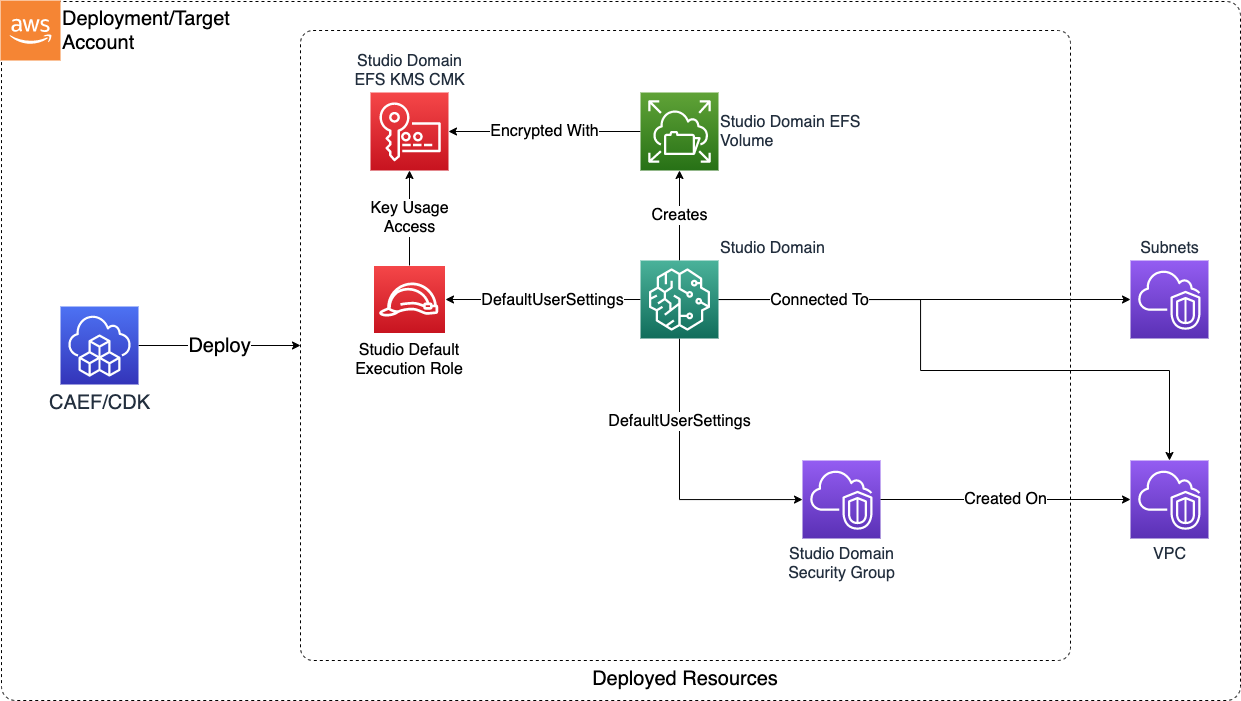
This module deploys and integrates the following resources:
Studio EFS KMS CMK - Encrypts the SageMaker Domain EFS volume (created automatically by SageMaker).
Studio Domain - A VPC-bound (VpcOnly) SageMaker AI Studio domain with configurable subnets and security groups. Supports both IAM Identity Center (SSO) and IAM authentication. Logs all AWS control plane interactions with the Studio User Profile Name auditable as 'sourceIdentity'.
Studio Domain Security Group - Controls network access to Studio resources and EFS.
Studio Default Execution Role - The role with which Studio apps will be launched. By default has minimal permissions required to launch Studio apps; optionally, an existing, more permissive role may be specified within the config.
Studio Lifecycle Configs - Scripts for automatically customizing Studio Apps/Kernels launched by domain users
Studio User Profiles (Optional) - User-specific profiles within the Studio domain for individual workspace configuration.
Notebook Sharing Bucket - S3 bucket for sharing notebooks between Studio users within the domain.
Related Modules
- Data Science Team — Provisions a Studio domain automatically as part of a complete data science team environment with Athena, S3, and Lake Formation
- SageMaker Notebooks — Deploy classic SageMaker notebook instances as an alternative to Studio
- Roles — Create IAM roles that can be referenced as data admin roles or custom execution roles for the Studio domain
Security/Compliance Details
This module is designed in alignment with MDAA security/compliance principles and CDK nag rulesets. Additional review is recommended prior to production deployment, ensuring organization-specific compliance requirements are met.
- Encryption at Rest:
- Domain EFS volume encrypted with customer-managed KMS key
- Data admin roles granted key admin/usage permissions
- Encryption in Transit:
- All SageMaker API and Studio communications use TLS
- Least Privilege:
- Default execution role has minimal permissions (launch Studio apps only)
- Data admin roles granted scoped key admin/usage permissions
- Separation of Duties:
- Supports both IAM and SSO authentication modes
- All AWS control plane interactions logged with Studio User Profile Name as auditable
sourceIdentityfor user attribution
- Network Isolation:
- Domain is VPC-bound (VpcOnly mode) with configurable subnets and security groups
- No public internet access
- Security group denies all ingress by default
AWS Service Endpoints
The following VPC endpoints may be required if public AWS service endpoint connectivity is unavailable (e.g., private subnets without NAT gateway, firewalled environments, or PrivateLink-only architectures):
| AWS Service | Endpoint Service Name | Type |
|---|---|---|
| SageMaker API | com.amazonaws.{region}.sagemaker.api |
Interface |
| SageMaker Runtime | com.amazonaws.{region}.sagemaker.runtime |
Interface |
| SageMaker Studio | com.amazonaws.{region}.studio |
Interface |
| KMS | com.amazonaws.{region}.kms |
Interface |
| S3 | com.amazonaws.{region}.s3 |
Gateway |
| CloudWatch Logs | com.amazonaws.{region}.logs |
Interface |
| STS | com.amazonaws.{region}.sts |
Interface |
| EFS | com.amazonaws.{region}.elasticfilesystem |
Interface |
Configuration
MDAA Config
Add the following snippet to your mdaa.yaml under the modules: section of a domain/env in order to use this module:
sm-studio-domain: # Module Name can be customized
  module_path: '@aws-mdaa/sm-studio-domain' # Must match module NPM package name
  module_configs:
    - ./sm-studio-domain.yaml # Filename/path can be customized
Module Config Samples and Variants
Copy the contents of the relevant sample config below into the ./sm-studio-domain.yaml file referenced in the MDAA config snippet above.
Minimal Configuration
Contains only the required properties to deploy a working Studio domain: authentication mode, VPC networking, and at least one user profile. Start here for a quick Studio setup before adding lifecycle configs, custom images, or notebook sharing.
# Contents available via above link
# Minimal config for the SageMaker Studio Domain module.
# Contains only the required properties to deploy a working
# Studio domain: authentication mode, VPC networking, and at
# least one user profile.

# SageMaker Studio domain configuration with VPC networking,
# authentication, user profiles, and lifecycle settings.
domain:
  # Authentication mode (enum: IAM, SSO)
  authMode: IAM
  # VPC ID for Studio domain deployment
  # Often created by your VPC/networking stack.
  # Example SSM: ssm:/path/to/vpc/id
  vpcId: vpc-id
  # Subnet IDs for Studio user applications
  # Often created by your VPC/networking stack.
  # Example SSM: ssm:/path/to/subnet/id
  subnetIds:
    - subnet-id

  # See CONFIGURATION.md for role reference options (name, arn, id).
  # (Optional) Admin roles for domain management. Required when
  # a notebook sharing bucket is created (the default).
  dataAdminRoles:
    - arn: 'arn:{{partition}}:iam::{{account}}:role/test-admin-role'

  # (Optional) Named user profiles for Studio domain
  userProfiles:
    # Key is the user identifier: SSO User ID (SSO mode) or
    # Session Name portion of aws:userid (IAM mode).
    example-user-id:
      # Required for IAM AuthMode. The role from which the user
      # will launch the user profile in Studio.
      userRole:
        name: test-user-role
Comprehensive Configuration
Provisions a Studio domain with IAM auth, VPC networking, user profiles, lifecycle configs for Jupyter/JupyterLab/Kernel apps, custom images, notebook sharing, and default user settings. Use this as a reference when you need full control over Studio domain configuration, user experience customization, and team collaboration features.
sample-config-comprehensive.yaml
# Contents available via above link
# Sample config for the SageMaker Studio Domain module.
# Provisions a Studio domain with IAM auth, VPC networking, user
# profiles, lifecycle configs for Jupyter/JupyterLab/Kernel apps,
# custom images, notebook sharing, and default user settings.
# This is the comprehensive config exercising all compatible properties.

# SageMaker Studio domain configuration with VPC networking,
# authentication, user profiles, and lifecycle settings.
domain:
  # Authentication mode (enum: IAM, SSO)
  authMode: IAM
  # VPC ID for Studio domain deployment
  # Often created by your VPC/networking stack.
  # Example SSM: ssm:/path/to/vpc/id
  vpcId: vpc-id
  # Subnet IDs for Studio user applications
  # Often created by your VPC/networking stack.
  # Example SSM: ssm:/path/to/subnet/id
  subnetIds:
    - subnet-id
  # (Optional) KMS key ARN for EFS encryption
  kmsKeyArn: 'arn:{{partition}}:kms:{{region}}:{{account}}:key/test-efs-key'
  # (Optional) Memory limit in MB for lifecycle asset deployment
  # Lambda
  assetDeploymentMemoryLimitMB: 512
  # (Optional) S3 prefix for lifecycle asset storage
  assetPrefix: 'lifecycle-assets'
  # (Optional) S3 prefix for shared notebook storage
  notebookSharingPrefix: testing
  # (Optional) Existing security group ID. When specified, this
  # security group is used instead of creating a new one.
  # Mutually exclusive with securityGroupIngress/securityGroupEgress
  # in practice; included here for schema completeness.
  securityGroupId: sg-test12345

  # See CONFIGURATION.md for role reference options (name, arn, id).
  # (Optional) Default execution role for Studio applications
  defaultExecutionRole:
    id: test-user-role-id

  # (Optional) Admin roles for domain management. Granted access
  # to Studio resources such as sharing S3 bucket, KMS key, etc.
  dataAdminRoles:
    - arn: 'arn:{{partition}}:iam::{{account}}:role/test-admin-role'
    - name: test-admin-role-by-name
  # (Optional) Domain bucket configuration for shared storage.
  # When specified, uses an existing bucket for the domain.
  domainBucket:
    # If specified, will be used as the bucket for the domain,
    # where notebooks will be shared, and lifecycle assets will
    # be uploaded. Otherwise a new bucket will be created.
    domainBucketName: test-domain-bucket
    # If defined, this role will be used to deploy lifecycle
    # assets. Should be assumable by lambda, and have write
    # access to the domain bucket under the assetPrefix. Must be
    # specified if an existing domainBucketName is also specified.
    assetDeploymentRole:
      arn: 'arn:{{partition}}:iam::{{account}}:role/test-asset-deploy-role'

  # (Optional) Security group ingress rules
  securityGroupIngress:
    # (Optional) IPv4 CIDR block rules for security group traffic
    # control
    ipv4:
      # CIDR block specification for network access control
      - cidr: 10.0.0.0/24
        # Port number to allow
        port: 443
        # IP protocol
        protocol: tcp
        # (Optional) Description for the rule
        description: Allow HTTPS from internal network
        # (Optional) The ending port number for a port range
        toPort: 443
        # (Optional) CDK Nag rule suppressions for this rule
        suppressions:
          - id: AwsSolutions-EC23
            reason: Required for internal network HTTPS access
    # (Optional) Security group rules for cross-security group
    # traffic control
    sg:
      - sgId: ssm:/ml/sm/sg/id
        port: 443
        protocol: tcp
        # (Optional) Description for the rule
        description: Allow from SageMaker SG
        # (Optional) The ending port number for a port range
        toPort: 443
        # (Optional) CDK Nag rule suppressions for this rule
        suppressions:
          - id: AwsSolutions-EC23
            reason: Required for SageMaker security group access
    # (Optional) Prefix list rules for security group traffic
    # control
    prefixList:
      - prefixList: pl-test123
        description: prefix list for test service
        protocol: tcp
        port: 443
        # (Optional) The ending port number for a port range
        toPort: 443
        # (Optional) CDK Nag rule suppressions for this rule
        suppressions:
          - id: AwsSolutions-EC23
            reason: Required for prefix list service access

  # (Optional) Security group egress rules
  securityGroupEgress:
    # (Optional) Prefix list rules for security group traffic
    # control
    prefixList:
      - prefixList: pl-4ea54027
        description: prefix list for com.amazonaws.{{region}}.dynamodb
        protocol: tcp
        port: 443
        # (Optional) The ending port number for a port range
        toPort: 443
        # (Optional) CDK Nag rule suppressions for this rule
        suppressions:
          - id: AwsSolutions-EC23
            reason: Required for DynamoDB prefix list egress
      - prefixList: pl-7da54014
        description: prefix list for com.amazonaws.{{region}}.s3
        protocol: tcp
        port: 443
    # (Optional) IPv4 CIDR block rules for security group traffic
    # control
    ipv4:
      - cidr: 0.0.0.0/0
        port: 443
        protocol: tcp
        # (Optional) Description for the rule
        description: Allow HTTPS egress to all destinations
        # (Optional) The ending port number for a port range
        toPort: 443
        # (Optional) CDK Nag rule suppressions for this rule
        suppressions:
          - id: AwsSolutions-EC23
            reason: Required for outbound HTTPS connectivity
    # (Optional) Security group rules for cross-security group
    # traffic control
    sg:
      - sgId: ssm:/ml/sm/sg/id
        port: 443
        protocol: tcp
        # (Optional) Description for the rule
        description: Allow egress to SageMaker SG
        # (Optional) The ending port number for a port range
        toPort: 443
        # (Optional) CDK Nag rule suppressions for this rule
        suppressions:
          - id: AwsSolutions-EC23
            reason: Required for SageMaker security group egress
  # (Optional) Named user profiles for Studio domain
  userProfiles:
    # Key is the user identifier: SSO User ID (SSO mode) or
    # Session Name portion of aws:userid (IAM mode).
    example-user-id:
      # Required for IAM AuthMode. The role from which the user
      # will launch the user profile in Studio.
      userRole:
        id: test-user-role-id

  # (Optional) Default user settings for Studio applications
  defaultUserSettings:
    # (Optional) The kernel gateway app settings
    kernelGatewayAppSettings:
      # (Optional) A list of custom SageMaker images configured
      # to run as a KernelGateway app
      customImages:
        # The name of the AppImageConfig
        - appImageConfigName: 'appImageConfigName'
          # The name of the CustomImage. Must be unique to your
          # account.
          imageName: 'imageName'
          # (Optional) The version number of the CustomImage
          imageVersionNumber: 1
      # (Optional) The default instance type and the ARN of the
      # default SageMaker image used by the KernelGateway app
      defaultResourceSpec:
        # (Optional) The instance type that the image version
        # runs on
        instanceType: ml.t3.medium
        # (Optional) The ARN of the SageMaker image that the
        # image version belongs to
        sageMakerImageArn: 'arn:{{partition}}:sagemaker:{{region}}:{{account}}:image/test-image'
        # (Optional) The ARN of the image version created on the
        # instance
        sageMakerImageVersionArn: 'arn:{{partition}}:sagemaker:{{region}}:{{account}}:image-version/test-image/1'
        # (Optional) The ARN of the Lifecycle Configuration
        # attached to the Resource
        lifecycleConfigArn: 'arn:{{partition}}:sagemaker:{{region}}:{{account}}:studio-lifecycle-config/test-kernel-lcc'
      # (Optional) The ARN of the Lifecycle Configurations
      # attached to the user profile or domain
      lifecycleConfigArns:
        - 'arn:{{partition}}:sagemaker:{{region}}:{{account}}:studio-lifecycle-config/test-kernel-lcc'

    # (Optional) The JupyterLab app settings
    jupyterLabAppSettings:
      # (Optional) Indicates whether idle shutdown is activated
      # for JupyterLab applications
      appLifecycleManagement:
        # (Optional) Settings related to idle shutdown of Studio
        # applications
        idleSettings:
          # (Optional) The time that SageMaker waits after the
          # application becomes idle before shutting it down
          idleTimeoutInMinutes: 60
          # (Optional) Indicates whether idle shutdown is
          # activated for the application type
          lifecycleManagement: ENABLED
          # (Optional) The maximum value in minutes that custom
          # idle shutdown can be set to by the user
          maxIdleTimeoutInMinutes: 120
          # (Optional) The minimum value in minutes that custom
          # idle shutdown can be set to by the user
          minIdleTimeoutInMinutes: 30
      # (Optional) The lifecycle configuration that runs before
      # the default lifecycle configuration
      builtInLifecycleConfigArn: 'arn:{{partition}}:sagemaker:{{region}}:{{account}}:studio-lifecycle-config/test-builtin-lcc'
      # (Optional) A list of Git repositories that SageMaker
      # automatically displays to users for cloning
      codeRepositories:
        # The URL of the Git repository
        - repositoryUrl: 'https://github.com/example/test-repo.git'
      # (Optional) A list of custom SageMaker images configured
      # to run as a JupyterLab app
      customImages:
        - appImageConfigName: 'jupyterLabAppImageConfig'
          imageName: 'jupyterLabImage'
          # (Optional) The version number of the CustomImage
          imageVersionNumber: 1
      # (Optional) The default instance type and the ARN of the
      # default SageMaker image used by the JupyterLab app
      defaultResourceSpec:
        # (Optional) The instance type that the image version
        # runs on
        instanceType: ml.t3.medium
        # (Optional) The ARN of the SageMaker image that the
        # image version belongs to
        sageMakerImageArn: 'arn:{{partition}}:sagemaker:{{region}}:{{account}}:image/test-jupyterlab-image'
        # (Optional) The ARN of the image version created on the
        # instance
        sageMakerImageVersionArn: 'arn:{{partition}}:sagemaker:{{region}}:{{account}}:image-version/test-jupyterlab-image/1'
        # (Optional) The ARN of the Lifecycle Configuration
        # attached to the Resource
        lifecycleConfigArn: 'arn:{{partition}}:sagemaker:{{region}}:{{account}}:studio-lifecycle-config/test-jupyterlab-lcc'
      # (Optional) The ARN of the lifecycle configurations
      # attached to the user profile or domain
      lifecycleConfigArns:
        - 'arn:{{partition}}:sagemaker:{{region}}:{{account}}:studio-lifecycle-config/test-jupyterlab-lcc'

    # (Optional) The Jupyter server's app settings
    jupyterServerAppSettings:
      # (Optional) The default instance type and the ARN of the
      # default SageMaker image used by the JupyterServer app
      defaultResourceSpec:
        # (Optional) The instance type that the image version
        # runs on
        instanceType: system
        # (Optional) The ARN of the SageMaker image that the
        # image version belongs to
        sageMakerImageArn: 'arn:{{partition}}:sagemaker:{{region}}:{{account}}:image/test-jupyter-image'
        # (Optional) The ARN of the image version created on the
        # instance
        sageMakerImageVersionArn: 'arn:{{partition}}:sagemaker:{{region}}:{{account}}:image-version/test-jupyter-image/1'
        # (Optional) The ARN of the Lifecycle Configuration
        # attached to the Resource
        lifecycleConfigArn: 'arn:{{partition}}:sagemaker:{{region}}:{{account}}:studio-lifecycle-config/test-jupyter-lcc'
      # (Optional) The ARN of the Lifecycle Configurations
      # attached to the JupyterServerApp
      lifecycleConfigArns:
        - 'arn:{{partition}}:sagemaker:{{region}}:{{account}}:studio-lifecycle-config/test-jupyter-lcc'

    # (Optional) A collection of settings that apply to an
    # RSessionGateway app
    rSessionAppSettings:
      # (Optional) A list of custom SageMaker images configured
      # to run as a RSession app
      customImages:
        - appImageConfigName: 'rSessionAppImageConfig'
          imageName: 'rSessionImage'
          imageVersionNumber: 1
      # (Optional) Specifies the ARNs of a SageMaker image and
      # SageMaker image version, and the instance type
      defaultResourceSpec:
        # (Optional) The instance type that the image version
        # runs on
        instanceType: ml.t3.medium
        # (Optional) The ARN of the SageMaker image that the
        # image version belongs to
        sageMakerImageArn: 'arn:{{partition}}:sagemaker:{{region}}:{{account}}:image/test-rsession-image'
        # (Optional) The ARN of the image version created on the
        # instance
        sageMakerImageVersionArn: 'arn:{{partition}}:sagemaker:{{region}}:{{account}}:image-version/test-rsession-image/1'
        # (Optional) The ARN of the Lifecycle Configuration
        # attached to the Resource
        lifecycleConfigArn: 'arn:{{partition}}:sagemaker:{{region}}:{{account}}:studio-lifecycle-config/test-rsession-lcc'

    # (Optional) A collection of settings that configure user
    # interaction with the RStudioServerPro app
    rStudioServerProAppSettings:
      # (Optional) Indicates whether the current user has access
      # to the RStudioServerPro app
      accessStatus: ENABLED
      # (Optional) The level of permissions that the user has
      # within the RStudioServerPro app (default: User)
      userGroup: Admin

    # (Optional) The security groups for the Amazon VPC that
    # Studio uses for communication
    securityGroups:
      - sg-test-default-user-sg

    # (Optional) Specifies options for sharing SageMaker Studio
    # notebooks
    sharingSettings:
      # (Optional) Whether to include the notebook cell output
      # when sharing the notebook (default: Disabled)
      notebookOutputOption: Allowed
      # (Optional) When NotebookOutputOption is Allowed, the KMS
      # encryption key ID used to encrypt the notebook cell output
      s3KmsKeyId: 'arn:{{partition}}:kms:{{region}}:{{account}}:key/test-sharing-key'
      # (Optional) When NotebookOutputOption is Allowed, the S3
      # bucket used to store the shared notebook snapshots
      s3OutputPath: 's3://test-sharing-bucket/notebook-output'

    # (Optional) Whether the Studio web portal is enabled
    # (enum: DISABLED, ENABLED)
    studioWebPortal: ENABLED
  # (Optional) Lifecycle configurations for Studio apps
  lifecycleConfigs:
    # (Optional) JupyterServer lifecycle script (Studio Classic).
    # Runs each time the main Jupyter app container is launched.
    jupyter:
      # (Optional) Named assets to deploy for this lifecycle
      # script. Assets staged in S3, then copied to SageMaker
      # container before lifecycle commands run. Available under
      # $ASSETS_DIR/<asset_name>/
      assets:
        testing:
          # Local file or directory path to deploy
          sourcePath: ./testing_asset_dir
          # (Optional) Glob patterns to exclude from asset
          # packaging
          exclude:
            - '*.pyc'
            - '__pycache__'
      # Lifecycle commands to execute
      cmds:
        - echo "testing jupyter"
        - sh $ASSETS_DIR/testing/test.sh

    # (Optional) JupyterLab lifecycle script (Studio Latest).
    # Runs each time the JupyterLab app container is launched.
    jupyterLab:
      # (Optional) Named assets to deploy for this lifecycle
      # script
      assets:
        testing:
          # Local file or directory path to deploy
          sourcePath: ./testing_asset_dir
          # (Optional) Glob patterns to exclude from asset
          # packaging
          exclude:
            - '*.pyc'
            - '__pycache__'
      # Lifecycle commands to execute
      cmds:
        - echo "testing jupyterlab (Studio Latest)"
        - pip install --upgrade pandas numpy scikit-learn
        - sh $ASSETS_DIR/testing/test.sh

    # (Optional) KernelGateway lifecycle script. Runs each time a
    # kernel gateway container is launched.
    kernel:
      # (Optional) Named assets to deploy for this lifecycle
      # script
      assets:
        testing:
          # Local file or directory path to deploy
          sourcePath: ./testing_asset_dir
          # (Optional) Glob patterns to exclude from asset
          # packaging
          exclude:
            - '*.pyc'
            - '__pycache__'
      # Lifecycle commands to execute
      cmds:
        - echo "testing kernel"
        - sh $ASSETS_DIR/testing/test.sh
SSO Authentication Configuration
Use this variant when your organization uses AWS IAM Identity Center (SSO) for user authentication instead of IAM. In SSO mode, user profiles do not require a userRole. Choose this variant when your identity strategy is centralized through IAM Identity Center.
# Contents available via above link
# Sample config for the SageMaker Studio Domain module using SSO
# authentication. Use this variant when your organization uses AWS
# IAM Identity Center (SSO) for user authentication instead of IAM.
# In SSO mode, user profiles do not require a userRole.

# SageMaker Studio domain configuration with VPC networking,
# authentication, user profiles, and lifecycle settings.
domain:
  # Authentication mode (enum: IAM, SSO)
  authMode: SSO
  # VPC ID for Studio domain deployment
  # Often created by your VPC/networking stack.
  # Example SSM: ssm:/path/to/vpc/id
  vpcId: vpc-id
  # Subnet IDs for Studio user applications
  # Often created by your VPC/networking stack.
  # Example SSM: ssm:/path/to/subnet/id
  subnetIds:
    - subnet-id
  # (Optional) KMS key ARN for EFS encryption
  kmsKeyArn: 'arn:{{partition}}:kms:{{region}}:{{account}}:key/test-efs-key'

  # See CONFIGURATION.md for role reference options (name, arn, id).
  # (Optional) Default execution role for Studio applications
  defaultExecutionRole:
    name: test-execution-role

  # (Optional) Admin roles for domain management. Required when
  # a notebook sharing bucket is created (the default).
  dataAdminRoles:
    - arn: 'arn:{{partition}}:iam::{{account}}:role/test-sso-admin-role'

  # (Optional) Named user profiles for Studio domain.
  # In SSO mode, the key is the SSO User ID and userRole is not
  # required.
  userProfiles:
    sso-user-id: {}

  # (Optional) Default user settings for Studio applications
  defaultUserSettings:
    # (Optional) Whether the Studio web portal is enabled
    # (enum: DISABLED, ENABLED)
    studioWebPortal: DISABLED