GenAI Accelerator with Bedrock Builder Sample Configuration
This sample configuration demonstrates deploying an enterprise-ready Customer Support Agent using MDAA's GenAI Accelerator Starter Package, featuring intelligent customer support agents with RAG capabilities.
Architecture Overview
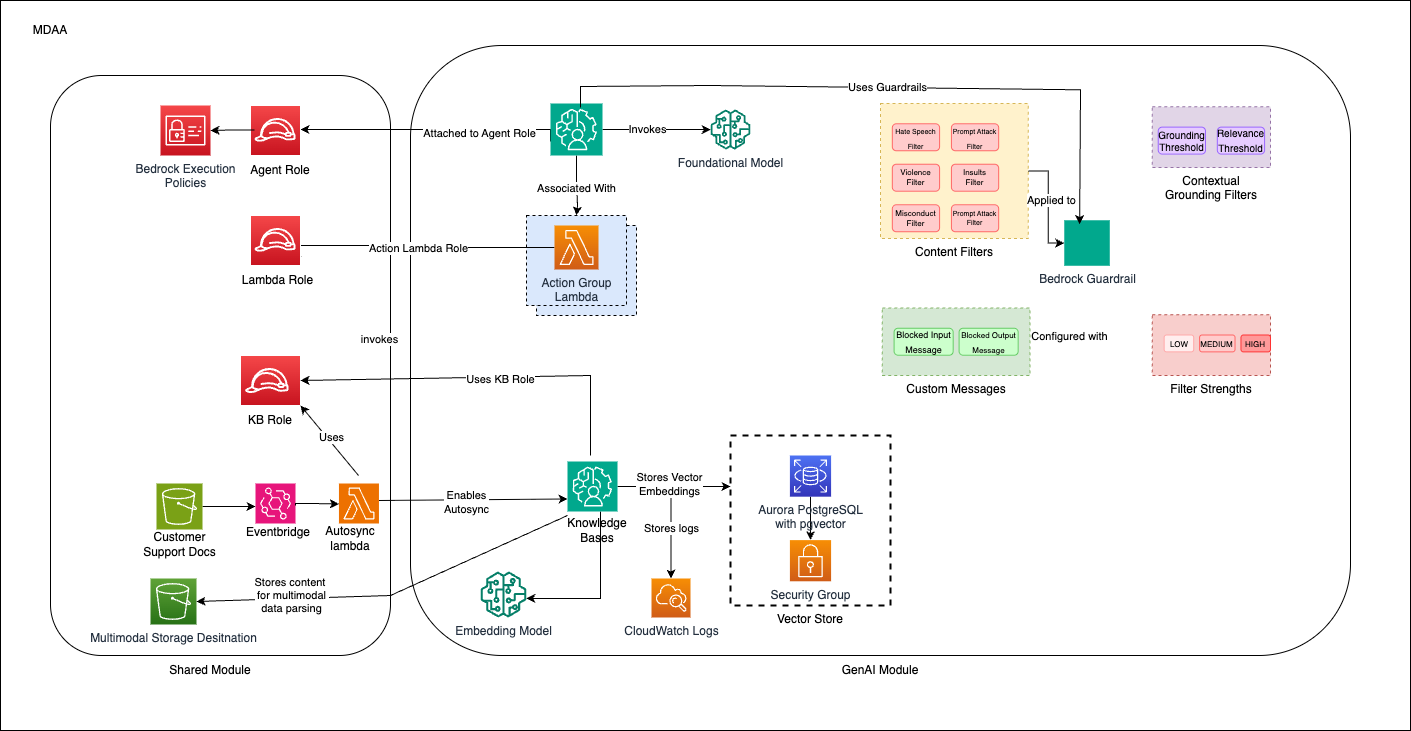
This configuration deploys:
- A GenAI platform with Bedrock integration for the core GenAI capabilities
- Bedrock Agents with action groups for customer support use cases
- Bedrock Knowledge Bases for RAG (Retrieval Augmented Generation) with auto-sync capabilities
- Vector stores for efficient knowledge retrieval
- Guardrails to ensure appropriate AI responses
- IAM roles including a data-admin role with all necessary permissions
- Multi-sync architecture for handling concurrent file uploads
Deployment Instructions
Prerequisites
- CDK bootstrapped in target account (Bootstrap Guide)
- MDAA source repo cloned locally
- AWS CLI configured with appropriate permissions
Step-by-Step Deployment
-
Setup Configuration
-
Edit the
mdaa.yamlto specify an organization name. This must be a globally unique name, as it is used in the naming of all deployed resources, some of which are globally named (such as S3 buckets). -
Determine Model Configuration
Choose your model ID from the AWS Bedrock supported models list.
For cross-region inference capabilities, use the Model Configuration Helper Script to determine the correct model arn. - Single region: Use model ID directly (e.g.,
anthropic.claude-3-5-sonnet-20240620-v1:0) -
Update Configuration Files
Update the
mdaa.yamlfile under thecontext:section with: - VPC and subnet information from your environment -llm_modelvalue from step 3 (either model ID or inference profile ARN) -
Deploy Application
For detailed deployment procedures, see DEPLOYMENT.
Auto-Sync Architecture
Multi-Sync Solution for Concurrent File Processing
This configuration implements an advanced auto-sync architecture to address AWS Knowledge Base service limitations that allow only one concurrent ingestion job per knowledge base.
Solution Architecture
The multi-sync architecture uses event batching and serialized processing:
- Event Batching: S3 events are collected and batched using SQS queues
- Serialized Processing: A dedicated Lambda function processes batches sequentially
- State Management: Tracks ingestion status to prevent duplicate processing
- Error Handling: Implements retry mechanisms and dead letter queues
AWS Service Constraints Handled
| Constraint | Limit | Solution |
|---|---|---|
| Concurrent ingestion jobs per knowledge base | 1 | Event batching and serialization |
| Concurrent ingestion jobs per data source | 1 | Sequential processing |
| Concurrent ingestion jobs per account | 5 | Account-level coordination |
| Maximum documents per API call | 25 | Batch size optimization |
| Maximum file size per ingestion | 50 MB | File validation |
Components
- SQS Queues: Buffer S3 events for batch processing
- Batch Sync Lambda: Processes events in serialized batches
- Dead Letter Queues: Handle failed processing attempts
Configuration Files
Directory Structure
genai_accelerator/
├── mdaa.yaml              # Main orchestration config
├── tags.yaml              # Resource tagging
├── roles.yaml             # IAM roles and policies
├── datalake/
│   └── datalake.yaml      # S3 buckets for knowledge bases
├── ai/
│   └── bedrock-builder.yaml # Bedrock agents and knowledge bases
├── lambda/src/            # Custom Lambda functions
│   ├── support_function.py
│   └── kb_custom_transform.py
└── api-schema/
    └── support-actions-api.yaml # OpenAPI schema for action groups
Key Configuration Files
mdaa.yaml - Main Configuration
⚠️ Required Changes Before Deployment:
- organization: Must be globally unique (used in S3 bucket names)
- vpc_id, subnet_id_1, subnet_id_2: Your VPC details (use private subnets for security)
region: us-east-1
organization: your-unique-org-name  # CHANGE THIS

context:
  vpc_id: vpc-xxxxxxxxx            # CHANGE THIS
  subnet_id_1: subnet-xxxxxxxxx    # CHANGE THIS
  subnet_id_2: subnet-xxxxxxxxx    # CHANGE THIS
  subnet_id_3: subnet-xxxxxxxxx    # CHANGE THIS

domains:
  shared:
    environments:
      dev:
        modules:
          roles:
            module_path: "@aws-mdaa/roles"
            module_configs:
              - ./roles.yaml
          datalake:
            module_path: "@aws-mdaa/datalake"
            module_configs:
              - ./datalake/datalake.yaml
          genai_accelerator:
            module_path: "@aws-mdaa/bedrock-builder"
            module_configs:
              - ./ai/bedrock-builder.yaml
Key Module Configurations
- roles.yaml: Defines IAM roles including data-admin with comprehensive Bedrock permissions
- datalake/datalake.yaml: Creates KMS-encrypted S3 buckets for knowledge base data sources
- ai/bedrock-builder.yaml: Configures Bedrock agents, knowledge bases, and guardrails
- tags.yaml: Standard tags applied to all resources
Components
Bedrock Builder
The Bedrock Builder module deploys: - Bedrock Agents with custom instructions - Lambda functions for agent action groups - Knowledge Bases for RAG capabilities - Vector stores for efficient knowledge retrieval - Guardrails for content safety
IAM Roles
The roles module deploys: - data-admin role: A comprehensive role with all permissions needed to manage Bedrock resources, including agents, knowledge bases, guardrails, Lambda functions, and associated resources - agent-execution-role: Service role for Bedrock agents to invoke models and access knowledge bases - kb-execution-role: Service role for Knowledge Base operations and data ingestion - agent-lambda-role: Execution role for Lambda functions used in agent action groups - kb-sync-lambda role: Execution role for multi-sync Lambda functions that handle concurrent file processing
Use Cases
This configuration is designed for: - Customer support Agent Assistant - Knowledge base search and retrieval - Document processing and analysis - Multi-modal content handling (text and images)
Usage Instructions
Once the MDAA deployment is complete, follow the following steps to interact with the GenerativeAI platform and test the Bedrock agents.
-
Assume the data-user role created by the MDAA deployment. This role is configured with AssumeRole trust to the local account for uploading documents by default.
-
Upload test documents to the knowledge base S3 buckets (see Document Upload section below).
-
Assume the data-admin role created by the MDAA deployment. This role is configured with AssumeRole trust to bedrock and all other resources.
-
Test the Bedrock Agent through the AWS Console:
- Navigate to Amazon Bedrock > Knowledge Bases
- Select the data source name and sync the Knowledge Base for the documents
- Navigate to Amazon Bedrock > Agents
- Select your deployed customer-support-agent
- Use the Test Agent interface to interact with the agent
- Ask questions related to the documents you uploaded
-
Monitor agent performance through CloudWatch logs and Bedrock trace.
Document Upload for Testing
The customer support agent uses Amazon Bedrock Knowledge Bases for document ingestion and retrieval. To test the agent with your documents, upload them to the configured S3 buckets.
Upload Locations
You have two separate data sources configured in different buckets:
-
Support Documents (
support-docs) - Auto-sync enabled with multi-sync:- Bucket:
${org}-${env}-shared-datalake-support-docs - Prefix:
data/ - Full S3 path:
s3://${org}-${env}-shared-datalake-support-docs/data/
- Bucket:
-
Product Documents (
product-docs) - Auto-sync enabled with multi-sync:- Bucket:
${org}-${env}-shared-datalake-product-docs - Prefix:
data/ - Full S3 path:
s3://${org}-${env}-shared-datalake-product-docs/data/
- Bucket:
Note: Both data sources have enableMultiSync: true configured to handle concurrent file uploads and synced to Knowledge base
How to Upload Documents
IMPORTANT: You must assume the data-user role before uploading documents.
Step 1: Assume the Data User Role
# Get your account ID
ACCOUNT_ID=$(aws sts get-caller-identity --query Account --output text)

# Assume the data-user role
aws sts assume-role \
  --role-arn arn:aws:iam::${ACCOUNT_ID}:role/${ORG}-${ENV}-shared-roles-data-user \
  --role-session-name document-upload-session
2. Upload Knowledge Base Documents
Upload documents to enable your agent to answer questions:
# Set your organization and environment names
ORG="your-org-name"
ENV="dev"
REGION="us-east-1"

# Get the KMS key ID (replace with actual key from deployment output)
KMS_KEY_ID="arn:aws:kms:${REGION}:${ACCOUNT_ID}:key/your-kms-key-id"

# Upload support documents
aws s3 cp your-support-doc.pdf \
  s3://${ORG}-${ENV}-shared-datalake-support-docs/data/ \
  --sse aws:kms --sse-kms-key-id ${KMS_KEY_ID}

# Upload product documents
aws s3 cp your-product-doc.pdf \
  s3://${ORG}-${ENV}-shared-datalake-product-docs/data/ \
  --sse aws:kms --sse-kms-key-id ${KMS_KEY_ID}

# Bulk upload to support docs
aws s3 sync ./support-documents/ \
  s3://${ORG}-${ENV}-shared-datalake-support-docs/data/ \
  --sse aws:kms --sse-kms-key-id ${KMS_KEY_ID}

# Bulk upload to product docs
aws s3 sync ./product-documents/ \
  s3://${ORG}-${ENV}-shared-datalake-product-docs/data/ \
  --sse aws:kms --sse-kms-key-id ${KMS_KEY_ID}
3. Test Your Agent
- AWS Console: Navigate to Amazon Bedrock → Agents → customer-support-agent
- Test Interface: Use the built-in test chat to interact with your agent
- Sample Questions:
- "What are our return policies?"
- "How do I troubleshoot product X?"
4. Monitor Performance
- CloudWatch Logs: Monitor agent interactions and Lambda function execution
- Bedrock Metrics: Track usage, latency, and error rates
- Knowledge Base Sync: Verify document ingestion status
Scripts
Model Configuration Helper Script
Use this script to determine the correct model configuration for your deployment:
#!/bin/bash
# Model Configuration Helper Script

# Set your desired model ID and region
export LLM_MODEL_ID="anthropic.claude-3-7-sonnet-20250219-v1:0"  # Change this to your desired model
export AWS_REGION="us-east-1"  # Change this to your target region

echo "Checking model: $LLM_MODEL_ID in region: $AWS_REGION"

MODEL_ARN=$(aws bedrock get-foundation-model --model-identifier "$LLM_MODEL_ID" --region "$AWS_REGION" --query "modelDetails.modelArn" --output text 2>/dev/null || echo "")

if [ -z "$MODEL_ARN" ]; then
    echo "Could not retrieve model ARN for $LLM_MODEL_ID"
    exit 1
fi

echo "Checking to see if there is a profile..."

# Check if there's an inference profile for this model ARN
PROFILE_ARN=$(aws bedrock list-inference-profiles --region "$AWS_REGION" --query "inferenceProfileSummaries[?contains(models[].modelArn, '$MODEL_ARN')].inferenceProfileArn" --output text 2>/dev/null || echo "")
if [ -n "$PROFILE_ARN" ]; then
    MODEL_TO_USE="$PROFILE_ARN"
    echo "Found inference profile in $AWS_REGION: $PROFILE_ARN"
else
    MODEL_TO_USE="$LLM_MODEL_ID"
    echo "No inference profile found, using model directly"
fi

echo "Testing accessibility of: $MODEL_TO_USE"
Important Notes:
- Cross-region inference: Use inference profile ARN (e.g., arn:aws:bedrock:us-east-1:<account_id>:inference-profile/us.anthropic.claude-3-7-sonnet-20250219-v1:0)
- Knowledge base parsing: Always use standard model ID format
- Single region: Use model ID directly
Troubleshooting
Common Issues
-
Access Denied when calling Bedrock:
- Verify the llm_model_id specified in the context values is correct
- Use the Model Configuration Helper Script to verify model configuration
- If you want to use models which need cross-region inference, use inference profile arn (e.g.,
arn:aws:bedrock:us-east-1:<account_id>:inference-profile/us.anthropic.claude-3-7-sonnet-20250219-v1:0) - Ensure the agent execution role has the necessary Bedrock permissions
- Verify that the foundation model is available in your region
- Check that the agent execution role can assume the service role for bedrock.amazonaws.com
-
Knowledge Base ingestion failures:
- Verify S3 bucket permissions and KMS key access
- Check that documents are uploaded with proper encryption
- Monitor CloudWatch logs for detailed error messages
- For multi-sync issues, check SQS queue status and batch processing lambda logs
-
Agent not responding:
- Ensure the agent is in "Prepared" state
- Check guardrail configurations
- Verify Lambda function permissions for action groups
Customization
You can customize this configuration by: - Defining your agent behaviour - Adding more agents with different capabilities - Expanding the knowledge bases with additional data sources - Modifying the guardrails for different content policies - Adding custom Lambda functions for specialized processing - Integrating with additional AWS services for enhanced functionality