SMUS Data Mesh
This starter kit demonstrates a production-ready, multi-account SageMaker Unified Studio (SMUS) deployment with cross-account data sharing, custom blueprints, and team-based isolation. It's designed for medium to large organizations who are implementing a data mesh, with multiple business units that need to collaborate on data while maintaining security boundaries and governance controls.
Use Cases
- Multi-account isolation with separate AWS accounts for different business units
- Centralized governance via a single SMUS domain managing data access across accounts
- Cross-account data sharing with teams publishing and consuming data across boundaries
- Custom blueprints for standardized infrastructure patterns deployed via SMUS projects
- Enterprise data lake with central repository for raw, transformed, and curated data
- Team autonomy with each team managing their own pipelines under governance policies
- Centralized user management via IAM Identity Center (SSO)
Capabilities
- Single SMUS domain with multi-account association for centralized governance
- Cross-account data sharing via AWS Lake Formation and DataZone
- Custom DynamoDB blueprint deployed across all accounts via project profiles
- Three-zone data lake (raw/transformed/curated) in the enterprise account
- DataOps projects with Glue catalogs, crawlers, and SMUS data sources
- Domain units for organizational hierarchy
- IAM Identity Center (SSO) integration for user and group management
- VPC-based networking with private subnets per account
Architecture
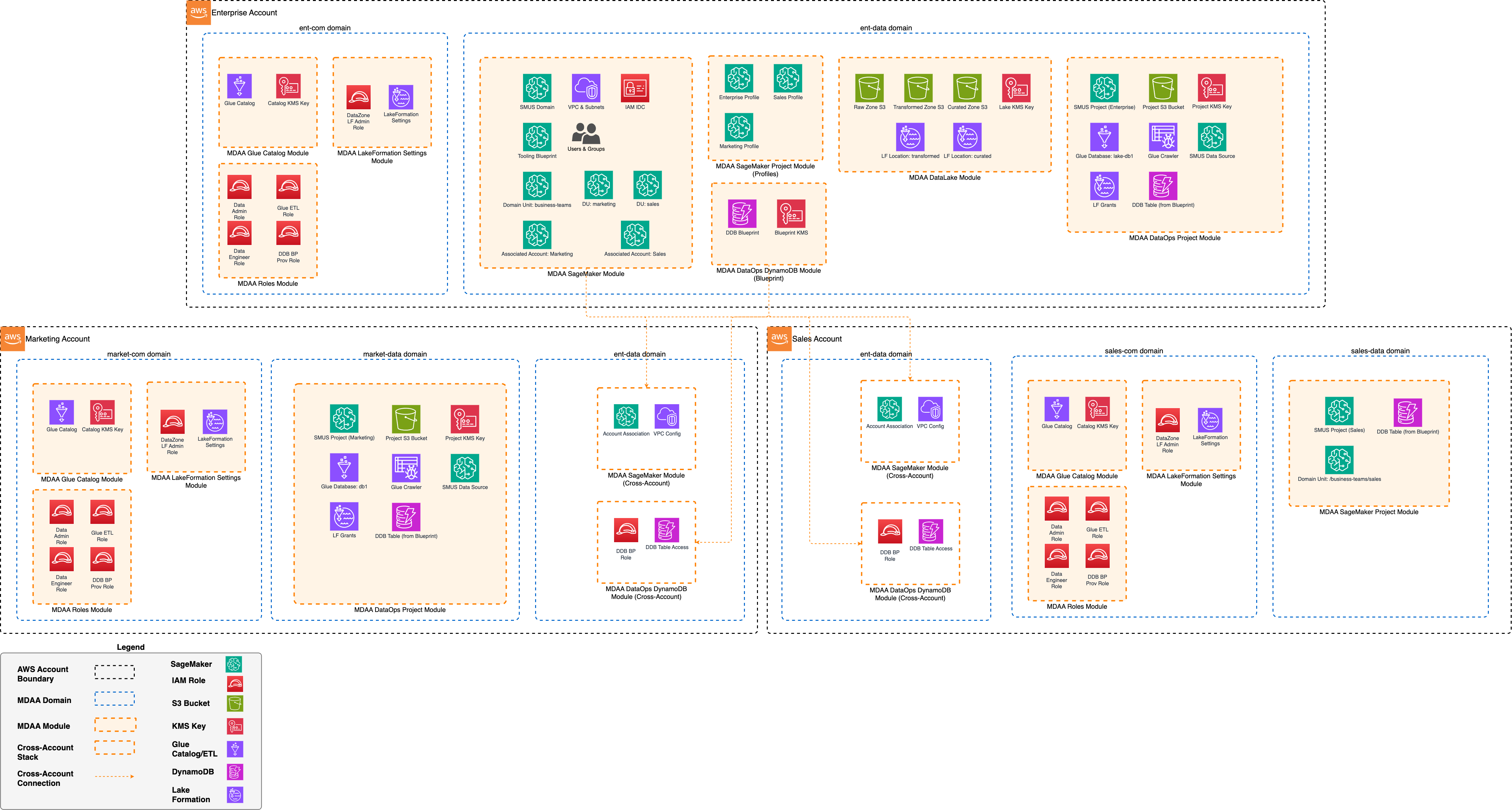
Deployment
Prerequisites and Predeployment
- Authenticate to your target AWS account and region. Ensure the authenticated role has permissions to deploy resources via CDK.
- Bootstrap CDK in all three accounts (enterprise, team1, team2) with cross-account trust.
-
Configure AWS Organizations:
- All three accounts must be members of an AWS Organization
- Enable AWS Organizations RAM sharing with automated associations
-
Enable IAM Identity Center in the target region and create SSO groups for enterprise, team1, and team2.
⚠️ Standalone Account Limitation: If deploying to an account not part of an AWS Organization, you must deploy in the same region where IAM Identity Center is enabled. Deploying to a different region will fail with:
IDC not enabled (Service: DataZone, Status Code: 400). -
Provision VPCs with private subnets in each account. Subnets must have connectivity to AWS service endpoints via public routing or VPC Endpoints.
Additional info: PREDEPLOYMENT
Configure MDAA
-
Address all TODOs in
mdaa.yaml, specifically:- Set
organizationto a globally unique name - Set
contextvalues:enterprise_account,team1_account,team2_account— AWS account IDsadmin1_user_sso_id— admin user SSO IDenterprise_group_sso_id,team1_group_sso_id,team2_group_sso_id— SSO group IDsenterprise_vpc_id,enterprise_private_subnet_id1,enterprise_private_subnet_id2— enterprise networkingteam1_vpc_id,team1_private_subnet_id1,team1_private_subnet_id2— team1 networkingteam2_vpc_id,team2_private_subnet_id1,team2_private_subnet_id2— team2 networking
- Set
-
Address all TODOs in module configs, specifically:
- CDK Nag suppressions in
common/roles.yaml. Uncomment each suppression only after reviewing the associated permissions and confirming they are acceptable for your environment.
- CDK Nag suppressions in
Deploy MDAA
Run the following from the starter kit directory (containing mdaa.yaml):
-
Optionally, run
npx @aws-mdaa/cli lsto understand what stacks will be deployed. -
Optionally, run
npx @aws-mdaa/cli synthand review the produced templates. -
Run
npx @aws-mdaa/cli deployto deploy all modules in the order they appear in the config.
Additional info: DEPLOYMENT
Next Steps
See USAGE for post-deployment instructions.
Modules Deployed
| Module | Purpose |
|---|---|
@aws-mdaa/glue-catalog |
Glue Catalog KMS encryption (all accounts) |
@aws-mdaa/roles |
IAM roles per account (data-admin, data-engineer, glue-etl, ddb-bp-prov) |
@aws-mdaa/lakeformation-settings |
Lake Formation DataZone integration (all accounts) |
@aws-mdaa/audit |
Encrypted S3 bucket and KMS key for CloudTrail audit log storage (all accounts) |
@aws-mdaa/audit-trail |
CloudTrail trail for S3 data event auditing (all accounts) |
@aws-mdaa/sagemaker |
SMUS domain (DataZone V2) with cross-account associations |
@aws-mdaa/dataops-dynamodb |
DynamoDB custom SMUS blueprint (cross-account) |
@aws-mdaa/sagemaker-project |
SMUS project profiles and team projects |
@aws-mdaa/datalake |
Enterprise three-zone data lake |
@aws-mdaa/dataops-project |
DataOps projects with SMUS integration |
Troubleshooting
-
IDC not enablederror during deployment: IAM Identity Center must be enabled in the same region as your deployment. For standalone accounts (not in an AWS Organization), deploy in the region where Identity Center is enabled. Check your IDC region in the IAM Identity Center console. -
Cross-account stack deployment fails: Verify all three accounts are CDK bootstrapped with cross-account trust, and that AWS Organizations RAM sharing with automated associations is enabled.
-
SMUS domain association fails: Ensure the target account IDs in
mdaa.yamlcontext are correct and that the accounts are members of the same AWS Organization. -
SSO users cannot access SMUS portal: Verify the SSO group IDs in
mdaa.yamlmatch the groups created in IAM Identity Center. Users must be members of the configured groups. -
Domain creation fails with PolicyGrant errors: Ensure you are authenticated with credentials derived from IAM Identity Center (not static IAM credentials). Use
aws configure ssoto set up SSO-based authentication. -
Lake Formation permission errors: Verify the Lake Formation admin roles are correctly configured in
common/lakeformation-settings.yamland that the data-admin role has been granted LF admin permissions in each account.